

The ability to control your PC's system fan is crucial for maintaining optimal performance and preventing overheating. However, encountering issues where you can't control the system fan can be frustrating. In this comprehensive guide, we'll explore various reasons behind this problem and provide step-by-step solutions to help you regain control over your PC's cooling system.

The system fan in your PC plays a vital role in regulating the temperature of crucial components such as the CPU, GPU, and motherboard. By adjusting the fan speed, you can ensure that these components stay within a safe temperature range, especially during intensive tasks like gaming, video editing, or running multiple applications simultaneously. Uncontrolled fan speeds can lead to overheating, which may cause system instability, reduced performance, and even permanent damage to your hardware.
Outdated, corrupted, or missing fan drivers can prevent your system from communicating with the fan properly. This is often the case when you've recently updated your Windows operating system or made changes to your hardware configuration. For example, if you've installed a new motherboard or a different type of fan, the existing drivers may not be compatible.
Incorrect BIOS settings related to fan control can also result in this issue. Some BIOS versions have default settings that may not be optimized for your specific hardware setup. For instance, the fan control mode might be set to "Auto" in a way that doesn't allow for manual adjustments, or the temperature thresholds for fan speed changes are misconfigured.
Certain software applications, especially those that interfere with system hardware monitoring or control, can disrupt the normal functioning of the fan control mechanism. This could include overclocking software, third-party system optimization tools, or even malware that has compromised the system's integrity.
Physical problems with the fan itself, such as a damaged motor, clogged vents, or a loose connection, can make it impossible to control the fan speed. Additionally, if the motherboard's fan headers are faulty, the system may not be able to send the appropriate control signals to the fan.
Open Device Manager: Press the Windows key + X and select "Device Manager" from the menu.
Locate the Fan Device: Expand the "System devices" or "Monitors" section (the location may vary depending on your system). Look for entries related to your fan, such as "CPU Fan" or "System Fan".
Update the Driver: Right-click on the fan device and select "Update driver". Choose the option to "Search automatically for updated driver software". Windows will then search for the latest driver and install it if available.
Reinstall the Driver: If updating the driver doesn't solve the issue, you can try uninstalling the driver. Right-click on the fan device and select "Uninstall device". After uninstalling, restart your PC, and Windows will automatically reinstall the driver.
Visit the Manufacturer's Website: For more accurate and up-to-date drivers, visit the official website of your motherboard or fan manufacturer. Search for the specific model of your hardware and download the latest driver from there. Install the driver following the provided instructions.
Enter the BIOS Setup: Restart your PC and look for the key (usually Del, F2, or F10) that is displayed on the screen during startup to enter the BIOS setup. Press the corresponding key as soon as you see the prompt.
Navigate to Fan Control Settings: Once in the BIOS, use the arrow keys to navigate to the section related to hardware monitoring or fan control. This section may be labeled "PC Health Status", "Hardware Monitor", or "Power Management".
Reset to Default Settings: If you're unsure about the correct settings, you can try resetting the BIOS to its default values. Look for an option like "Load Default Settings" or "Restore Defaults" and select it. This will revert all BIOS settings to their factory defaults, which may fix any incorrect fan control settings.
Adjust Fan Control Mode: In the fan control section, check the fan control mode. It could be set to "Auto", "Manual", or "PWM (Pulse-Width Modulation)". If it's set to "Auto" and you want more control, change it to "Manual" or "PWM". In manual mode, you can usually set the fan speed as a percentage or adjust the temperature thresholds for fan speed changes.
Save and Exit: After making the necessary changes, press the key to save the settings and exit the BIOS. Your PC will restart with the new BIOS settings applied.
Uninstall Suspicious Software: Uninstall any recently installed software that you suspect may be interfering with the fan control. This could include overclocking software, system optimization tools, or any applications that claim to control hardware settings. To uninstall software, go to "Settings" > "Apps" > "Apps & features". Find the software in the list and click "Uninstall".
Run a Malware Scan: Use a reliable antivirus or anti-malware program to scan your system for any malicious software. Malware can sometimes disrupt system functions, including fan control. Run a full system scan and follow the instructions provided by the antivirus program to remove any detected threats.
Check for Windows Updates: Install any pending Windows updates. Sometimes, software conflicts can be resolved by updating the operating system to the latest version. Windows updates often include bug fixes, security patches, and improvements that can address compatibility issues with hardware and software. Go to "Settings" > "Update & Security" > "Windows Update" and click "Check for updates". Install any available updates and restart your PC.
Check the Fan Connection: Open your PC case and visually inspect the connection between the fan and the motherboard. Make sure the fan cable is securely plugged into the appropriate fan header on the motherboard. If the connection is loose, gently push the cable in to ensure a proper connection.
Clean the Fan and Vents: Dust and debris can accumulate on the fan blades and inside the vents, causing the fan to malfunction. Use a can of compressed air to blow away the dust from the fan and vents. Hold the can upright and keep a safe distance from the components to avoid causing any damage. You can also use a soft brush to gently remove any stubborn dirt.
Test the Fan with a Different Power Source: If possible, test the fan by connecting it to a different power source, such as a different fan header on the motherboard or a power supply molex connector using an adapter. This can help determine if the issue is with the fan itself or the motherboard's fan header. If the fan works properly with a different power source, the problem may lie with the original fan header.
Replace the Fan: If the fan is damaged or not functioning properly, you may need to replace it. Purchase a new fan that is compatible with your PC's case and motherboard. Follow the installation instructions provided with the new fan to replace the old one.
By following the steps outlined in this guide, you should be able to diagnose and fix the “Cannot Control PC System Fan” issue in Windows. Remember to approach each solution methodically, starting with the software-related fixes and gradually moving on to hardware inspections if necessary. If you're still unable to resolve the problem after trying all the solutions, it may be advisable to seek professional help from a computer technician or contact the manufacturer of your PC or motherboard for further assistance.

GameMax KF300R BK, Reverse 120mm Black frame ARGB Fan 3 in 1 Kit, -Reverse Fan Blade for Power Supply Shroud /Bottom plate of Case for Air Intakes!
• 【Intelligent Speed Control】3 pcs 120mm full function ARGB PWM fans
• The intelligent temperature controls the speed at 800~1600±10% RPM, by linking to the motherboard PWM 4pin socket, so the fan speed auto controlled and keeps the fans quiet
• These fans are 3pin 5v ARGB connectors that connect with ARGB control HUB one by one
• 【Inner And Outer Light】Addressable RGB LEDs can be controlled by ARGB remote controller(Included package), Multiple ARGB light modes and speeds, provide colorful streamer lighting effects
• creating a practical and beautiful cooling system
• You also can turn on / off the fan light effect and switch the fan hub ARGB signal to the motherboard 5V ARGB port by AURA Sync Mode
• 【Shockproof Design】The fan frame is fixed on both sides with 8 pieces of shock-absorbing rubber pads
• The rubber soft material which is not easy to peel off has a good shock-absorbing effect, which can make the internal operation of the computer case stable and reduce the noise output between the fan and the computer case
• The maximum noise of the fan is only 31dBA
• 【Reverse Blade of Fan】 Reverse Fan Blade for Power Supply Shroud /Bottom plate of Case for Air Intakes, to additional increase airflow from bottom to vertical chassis design type.
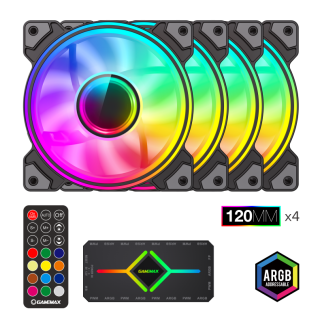
GameMax DRH400, 120mm Dual Ring ARGB Fan 4 in 1 Kit, Along Includes Premium V4.0 ARGB HUB with Wireless Remote Controller - High-Performance Cooling Fan for PC Case
• 【Intelligent Speed Control】4 pcs 120mm full function ARGB fans
• The intelligent temperature controls the speed at 600~1200±10% RPM, so the fan speed can be controlled and keep the fans quiet
• There’s speed control by remote controller
• These fans are 3pin 5v ARGB connectors that connect with ARGB control HUB one by one
• 【Inner And Outer Light】Addressable RGB LEDs can be controlled by ARGB remote controller(Included package), Multiple ARGB light modes and speeds, provide colorful streamer lighting effects
• creating a practical and beautiful cooling system
• You also can turn on / off the fan light effect and switch the fan hub’s ARGB signal to the motherboard 5V ARGB port by AURA Sync Mode
• 【Shockproof Design】The fan frame is fixed on both sides with 8 pieces of shock-absorbing rubber pads
• The rubber soft material which is not easy to peel off has a good shock-absorbing effect, which can make the internal operation of the computer case stable and reduce the noise output between the fan and the computer case
• The maximum noise of the fan is only 30dBA
• 【V4.0 ARGB HUB-PWM | 5V ARGB Sync】Remote Control multi-featured hub, Magnetic design for easy installation, the magnet at the bottom of the controller can be firmly attached to the metal plate of the chassis, making installation easy!

