

SSDs (Solid-State Drives) are beloved for their fast boot times, quick app launches, and snappy file transfers. But a common question lingers among users: Does an SSD’s performance take a hit when it’s nearly full? The answer is more nuanced than a simple “yes” or “no”—and understanding the details can help you keep your SSD running at peak speed.
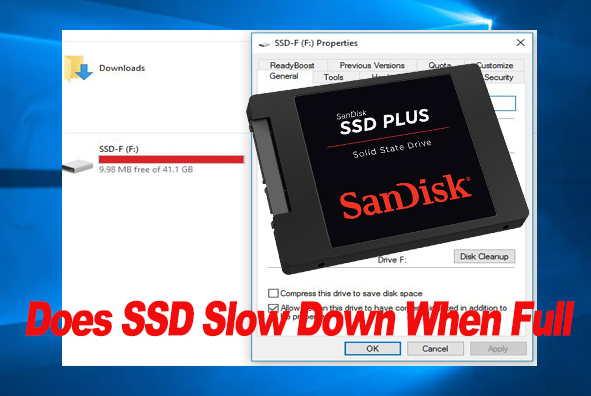
Yes, SSDs can slow down when they’re 85% full or more—but the degree of slowdown depends on the drive’s type, age, and how you use it. Unlike HDDs (Hard Disk Drives), which rely on physical spinning disks, SSDs use NAND flash memory and a controller to read and write data. This design makes them faster, but it also means they need free space to operate efficiently.
To understand the slowdown, you need to know how SSDs handle data:
Overprovisioning: The “hidden” free space
SSDs come with a small amount of “overprovisioned” space (usually 7–10% of the total capacity) that’s invisible to users. This space helps the drive’s controller manage data, perform wear leveling (spreading data evenly to avoid wearing out specific memory cells), and erase old data in the background. When your SSD is nearly full, this overprovisioned space gets squeezed, forcing the controller to work harder.
Write amplification
SSDs can’t overwrite existing data directly—they first need to erase old data in blocks. When free space is low, the controller has fewer empty blocks to work with. It must spend more time moving and erasing data to make room for new writes, a process that slows down performance. This “write amplification” becomes far more noticeable when the drive is over 85% full.
TRIM command limitations
The TRIM command (which tells the SSD to erase deleted data in the background) works best with free space. When the drive is full, TRIM has less room to operate, leaving old data blocks lingering and cluttering the drive.
The speed drop varies, but real-world tests show consistent patterns:
At 70–85% full: Minimal impact. Sequential read/write speeds (e.g., transferring large files) may drop by 5–10%, but you’ll barely notice in daily use.
At 85–95% full: Noticeable slowdowns. Sequential writes can drop by 20–50%, and random writes (critical for app launches and gaming) may slow by 30–60%. For example, a 1TB SSD that writes at 3,000 MB/s when half-full might drop to 1,500–2,200 MB/s when 90% full.
Over 95% full: Severe performance hits. Writes can plummet by 70–90%, and the drive may feel as slow as an HDD. Apps may take longer to load, and saving files can become frustratingly slow.
You don’t need to keep your SSD half-empty to maintain speed. Follow these tips to optimize performance even when space is tight:
Keep at least 10–15% free space
This mimics the benefits of overprovisioning, giving the controller room to manage data. For a 1TB SSD, aim to keep 100–150GB free. If you’re close to full, delete large unused files (e.g., old game installs, video backups) or move them to an external drive.
Enable TRIM
Ensure TRIM is enabled (it’s on by default in Windows 10/11 and macOS). To check in Windows: Open Command Prompt and type fsutil behavior query DisableDeleteNotify—a “0” means TRIM is enabled. TRIM clears deleted data in the background, reducing clutter.
Avoid frequent small writes
Tasks like constant downloading, logging, or temp file creation can wear out free space. Use a RAM disk for temp files or redirect downloads to an HDD to reduce SSD write pressure.
Optimize with built-in tools
Windows: Use “Storage Sense” to auto-delete temporary files and empty the Recycle Bin.
macOS: Use “Optimize Storage” to remove old iOS backups and unused apps.
Third-party tools: Apps like CCleaner or Crucial Storage Executive can run TRIM manually and analyze space hogs.
Choose SSDs with overprovisioning support
High-end SSDs (e.g., Samsung 990 Pro, Western Digital Black) let you manually set aside overprovisioned space (via their software). Even 5–10% extra overprovisioning can reduce slowdowns when the drive is full.
SSDs do slow down when full—especially over 85% capacity—due to reduced overprovisioning, write amplification, and TRIM limitations. The slowdown ranges from minor (5–10%) at 70–85% full to severe (50–90%) when over 95% full.
The good news is that this degradation is preventable. By keeping 10–15% free space, enabling TRIM, and avoiding unnecessary writes, you can keep your SSD fast even as it fills up. With a little maintenance, your SSD will maintain its speed for years.

