

A mouse that double-clicks when you only intend to single-click can be extremely frustrating, disrupting tasks like file management, gaming, and web browsing. This common issue can stem from hardware wear, software settings, or even dirt and debris. Fortunately, most causes are fixable with a few targeted steps. Below is a detailed, step-by-step guide to diagnose and resolve the problem.

Before diving into complex solutions, start with simple checks to eliminate easy-to-fix culprits:
Test on a Different Surface: A glossy or uneven mouse pad (or even a wooden desk) can cause erratic sensor behavior, mimicking double-clicks. Switch to a matte, textured mouse pad or a plain sheet of paper to see if the issue persists.
Check for Physical Obstructions: Turn the mouse upside down and inspect the sensor (for optical mice) and the click buttons. Dust, hair, or crumbs can block the sensor or jam the button mechanisms, causing misclicks. Use compressed air to blow away debris, or gently wipe the sensor with a soft, dry cloth.
Try a Different USB Port: A faulty or loose USB port can cause intermittent connectivity issues, which may manifest as double-clicks. Plug the mouse into another USB port—preferably a rear port on a desktop (to avoid front-panel interference) or a different hub.
Test on Another Device: Connect the mouse to a laptop, tablet, or another computer. If it still double-clicks, the problem is likely with the mouse itself. If it works normally, the issue may lie in your original device’s settings or drivers.
Windows and macOS let you customize how quickly clicks register as "double-clicks." If this threshold is set too low, a single firm click might be misread as two. Here’s how to adjust it:
Press Win + I to open Settings, then go to Devices > Mouse.
Scroll down and click Additional mouse options (a link on the right).
In the Mouse Properties window, go to the Buttons tab.
Locate the "Double-click speed" slider. Drag it toward "Slow" to increase the time allowed between clicks for them to count as a double-click.
Test the setting using the folder icon below the slider: single-click it—if it opens, the speed is too sensitive. Adjust until a single click selects the folder, and a deliberate double-click opens it.
Click Apply then OK to save changes.
Open System Preferences (or System Settings on macOS Ventura+) and go to Mouse.
Look for "Double-Click Speed" (or a similar option, depending on your macOS version).
Drag the slider to the left to slow down the double-click threshold.
Test with the preview area to ensure single clicks don’t trigger double-clicks.
Outdated or corrupted drivers can cause communication errors between the mouse and your computer, leading to misclicks. Updating or reinstalling them often resolves issues:
Press Win + X and select Device Manager.
Expand the Mice and other pointing devices category.
Right-click your mouse (it may appear as "HID-compliant mouse" or the brand name, e.g., "Logitech G502") and select Update driver.
Choose "Search automatically for drivers" and follow prompts to install any available updates.
If updating doesn’t work, right-click the mouse again and select Uninstall device. Restart your computer—Windows will automatically reinstall the default driver.
macOS typically handles drivers automatically, but you can check for system updates that might include fixes:
Open System Preferences > Software Update.
Install any pending updates, then restart your Mac.
Over time, the physical buttons on a mouse can wear out. The click mechanism relies on small springs and switches—when these get dirty or lose tension, they may register extra clicks. Cleaning the buttons can often restore functionality:
Cotton swabs
Isopropyl alcohol (70% or higher)
A small screwdriver (if your mouse is user-serviceable)
Power off your computer or disconnect the mouse to avoid accidental clicks during cleaning.
If your mouse has a removable bottom panel (check for screws or clips), carefully open it to access the button mechanisms. For wireless mice, remove the battery first.
Locate the click switches (small plastic components under the left/right buttons). Gently wipe around them with a cotton swab dampened with isopropyl alcohol (don’t soak it). This dissolves grime that may be causing the switch to stick.
Let the alcohol dry completely (5–10 minutes) before reassembling the mouse.
Test the mouse—if the double-clicking persists, the switch itself may be worn out (see Step 5 for replacement options).
If cleaning doesn’t work, the issue may be a faulty microswitch—the tiny electrical component inside the mouse that registers clicks. These switches wear out over time, especially in frequently used mice (e.g., gaming mice).
Check for Warranty: If your mouse is new (under 1–2 years), contact the manufacturer. Brands like Logitech, Razer, and Microsoft often replace defective mice under warranty.
Replace the Microswitch: This requires basic soldering skills. You can buy replacement switches (e.g., Omron switches, common in quality mice) online for a few dollars. Follow YouTube tutorials specific to your mouse model for step-by-step guidance.
Consider a New Mouse: If the mouse is old or repair seems daunting, replacing it may be more cost-effective than buying parts.
If you’re using a laptop and a external mouse, accidental touchpad inputs can sometimes mimic mouse clicks. To rule this out:
Disable the Touchpad: On Windows, press Win + I > Devices > Touchpad and toggle it off. On macOS, go to System Preferences > Trackpad and uncheck "Enable Trackpad."
Adjust Touchpad Sensitivity: Lowering sensitivity can prevent unintended clicks. In touchpad settings, reduce "Tap to click" sensitivity or disable tap-to-click entirely.
If software conflicts (e.g., background apps, gaming tools, or malware) are causing the issue, testing in Safe Mode can help. Safe Mode loads only essential drivers and apps, isolating third-party software:
Windows: Restart your computer and press F8 (or Shift + Restart from the Start menu) to enter Safe Mode. Test the mouse—if it works, a background app is likely the culprit. Uninstall recently installed software to identify the conflict.
macOS: Restart your Mac and hold Shift until the Apple logo appears. Use the mouse in Safe Mode—if it functions normally, check for problematic apps in System Preferences > Users & Groups > Login Items and disable them.
If you’ve tried all these steps and the mouse still double-clicks, it may have irreparable hardware damage (e.g., a broken circuit board). In this case:
Contact the manufacturer for warranty support.
Visit a local electronics repair shop—they can diagnose and replace components more efficiently than DIY methods.
Avoid Excessive Force: Pressing mouse buttons too hard accelerates switch wear. Use light, consistent pressure.
Keep It Clean: Regularly blow dust out of the mouse with compressed air, especially if you use it in a dusty environment.
Invest in Quality: Mice with durable switches (e.g., mechanical switches rated for 50+ million clicks) are less likely to develop double-click issues prematurely.
By following these steps, you’ll likely resolve the double-click problem and restore your mouse to reliable performance. Most issues are fixable with cleaning, settings tweaks, or minor repairs—saving you the cost of a new mouse.
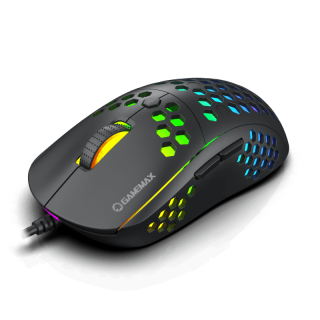
GameMax MG8 Gaming Mouse with Lightweight Honeycomb Shell, Ultralight Ultraweave Cable, 6400 DPI Optical Sensor
• Lightweight honeycomb shell: New perforated housing is engineered to be supremely durable and lightweight, meaning you can play longer without fatigue
• Ultralight ultra weave cable: innovative ultra weave cable significantly reduces weight and cable pull while swiping; Fight against your enemies, not cable pull
• Superior mouse feet: PTFE Material provides smooth control with low friction, consistent glide
• Gaming grade optical sensor; adjustable up to 6400 DPI for greater control, precision, and future-proofing
• Ergonomic, ambidextrous shape: optimized for the buttons for added convenience
• High-grade quality switches for left and right clicks are graded for 10 million presses that remain accurate and true till the end

