

A non - working keyboard can bring your work or daily computer use to a sudden halt. It's a frustrating issue, but before you rush to buy a new one, it's worth exploring the possible causes and trying to fix it. Here's a detailed guide to help you figure out why your keyboard isn't working and how to solve the problem.

One of the most common reasons for a keyboard to stop working is a poor or loose connection, especially for wired keyboards. Start by checking the USB port where the keyboard is plugged in. Sometimes, the connector might not be fully inserted into the port. Try unplugging the keyboard and then plugging it back in firmly. If that doesn't work, try a different USB port on your computer. USB ports can sometimes fail, and switching to another one could resolve the issue.
For wireless keyboards, the connection problem could be with the receiver or the battery. First, check if the wireless receiver is properly plugged into the USB port. If it's a Bluetooth keyboard, make sure Bluetooth is enabled on your computer and that the keyboard is in pairing mode. Also, don't overlook the battery. Weak or dead batteries are a frequent culprit. Open the battery compartment, replace the old batteries with new ones of the correct type, and see if the keyboard starts working.
If the connection seems fine, the next step is to check for hardware damage. Take a close look at the keyboard itself. Are there any visible signs of physical damage, such as cracked keys, a bent connector, or liquid spills? Liquid can seep into the keyboard and cause short circuits or damage the internal components. If you suspect a liquid spill, turn off the computer immediately, unplug the keyboard, and try to dry it out. You can place it in a dry, well - ventilated area for a day or two, or use a hairdryer on a low, cool setting to speed up the drying process (be careful not to use high heat as it can damage the keyboard).
Another hardware - related issue could be stuck keys. Sometimes, dirt, dust, or crumbs can get under a key, preventing it from pressing down properly or registering the keystroke. Gently pry up the stuck key (using a small tool like a flathead screwdriver wrapped in a cloth to avoid scratches) and clean out any debris with a can of compressed air or a soft brush. Then, press the key back into place and test it.
Even if the keyboard hardware looks intact, software or driver problems can cause it to malfunction. Outdated, corrupted, or incompatible keyboard drivers are often the cause. To check and update the drivers, follow these steps:
Press the Windows key + X and select "Device Manager" from the menu.
In the Device Manager window, expand the "Keyboards" category.
You should see your keyboard listed. Right - click on it and select "Update driver".
Choose "Search automatically for drivers". Windows will then search for and install any available updates.
If updating the driver doesn't work, try uninstalling the driver. Right - click on the keyboard in Device Manager and select "Uninstall device". Then, restart your computer. Windows will automatically reinstall the default driver for the keyboard.
Sometimes, the problem might be with the operating system. A recent system update could have caused a conflict. You can try restarting your computer first; this simple step can often fix minor software glitches. If that doesn't help, check for any pending system updates and install them. Microsoft and other operating system providers regularly release updates to fix bugs and improve compatibility.
In some cases, the keyboard might be disabled in the system settings. For example, on a Windows computer, you can check the Ease of Access settings. Go to "Settings" > "Ease of Access" > "Keyboard" and make sure that the "Use the On - Screen Keyboard" option is not enabled (unless you intentionally want to use it), and that other keyboard - related settings are configured correctly.
If you're using an external keyboard with a laptop, there might be a function key that disables the external keyboard. Check your laptop's user manual to see if there's such a key combination and make sure it's not activated.
If you've tried all the above methods and your keyboard still isn't working, it might be a more serious hardware issue, such as a faulty circuit board. In this case, it might be time to take the keyboard to a professional repair service. However, if the keyboard is old or the repair cost is high, replacing it with a new one could be a more cost - effective option.
In conclusion, a non - working keyboard doesn't always mean it's time to throw it away. By checking the connection, inspecting for hardware damage, updating drivers, and troubleshooting software issues, you can often fix the problem yourself. Start with the simplest solutions and work your way up, and you'll have a good chance of getting your keyboard back in working order.
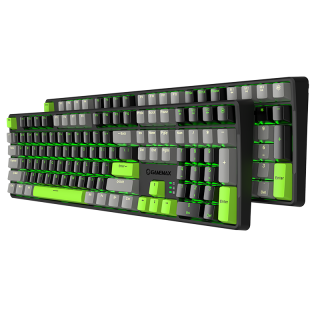
The keycap adopts a two-color injection molding process, which is durable and durable, and is not easy to fade, X1 model Black/Gray and X2 Gray/Black color combination
• Sensitive key response, trigger stroke 2.0mm
• durable and excellent handle
• Adopt mechanical green shaft switch design, with 60 million times of key life
• Support 6-key and N-key mode selection, and the Num Pad function is not affected
• Intelligent sleep mode, The backlight is off once the PC standby and resumes the previous mode after starting
• PBT key cap, gap backlight, uniform color
• The humanized design of the keyboard adds a series of common shortcut function keys in cooperation with Fn
• Dual mode (game mode) and (office mode) can be switched freely according to personal needs
• Independent 4 multimedia keys
• Independent 3 indicators: NUM, CAP, WIN (lock WIN) indicator

