

A pen drive (or USB flash drive) is a convenient storage device, but there are times when you need to erase it—whether to free up space, remove sensitive data before sharing, or prepare it for a new use. Erasing a pen drive isn’t just about deleting files; the method depends on whether you need a simple cleanup or a secure wipe to prevent data recovery. Here’s how to do it properly.

If you want to quickly clear all files and reuse the pen drive (e.g., for transferring new data), formatting is the easiest option. This method removes visible files but doesn’t fully prevent advanced data recovery tools from retrieving old data—so it’s only suitable for non-sensitive content.
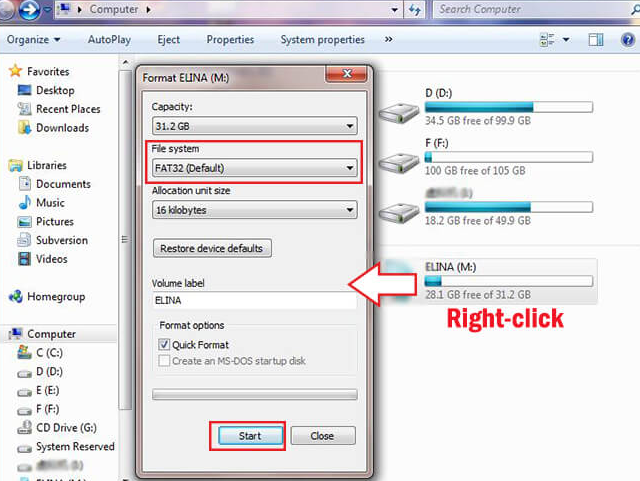
Plug the pen drive into your computer’s USB port. Wait for it to be detected (it will appear in “This PC”).
Right-click the pen drive icon and select “Format”.
In the pop-up window:
Choose a file system (“NTFS” for Windows-only use, “exFAT” for cross-platform use with Mac/iOS).
Check “Quick Format” (this skips a full scan, saving time).
Click “Start” and confirm the warning (this will delete all data). Wait for the process to finish (usually 1–2 minutes for a 32GB drive).
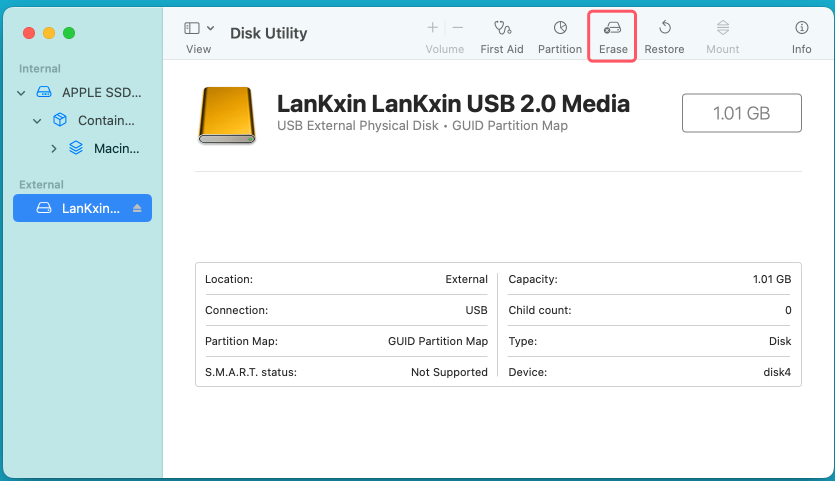
Insert the pen drive and open “Disk Utility” (search for it in Spotlight or find it in Applications > Utilities).
Select your pen drive from the left sidebar.
Click “Erase” at the top of the window.
Name the drive (optional), choose a format (“APFS” for Mac-only, “exFAT” for cross-platform), then click “Erase”.
Confirm the action. The process will complete in a few minutes.
If the pen drive stored sensitive data (e.g., passwords, financial records, or personal files), a basic format isn’t enough. Cybercriminals or data recovery tools could still access erased files. For complete security, use a full format (Windows) or a third-party secure wipe tool.
A full format overwrites the drive with zeros, making data recovery extremely difficult.
Follow steps 1–2 of the basic formatting guide (right-click the pen drive > “Format”).
Uncheck “Quick Format” (this enables the full wipe).
Choose a file system (same as above) and click “Start”. Note: This takes longer (e.g., 10–15 minutes for a 32GB drive) but is far more secure.
For the highest level of security (e.g., before selling or discarding the pen drive), use tools designed to overwrite data multiple times. Popular options include:
CCleaner (free version): Go to “Tools > Drive Wiper”, select the pen drive, choose “Secure Overwrite (3 passes)”, and start.
DBAN (Darik’s Boot and Nuke): A more advanced tool that works via bootable media, ideal for 彻底 wiping drives with highly sensitive data.
Backup first: Always copy important files to another device before erasing—once data is deleted, it may be irrecoverable.
Check for hidden files: Some files (e.g., system files or hidden folders) might not be deleted by a basic format. Use “File Explorer” (Windows) or “Finder” (Mac) to show hidden files and delete them manually first if needed.
Test the drive after erasure: After formatting or wiping, open the pen drive to ensure it’s empty. You can also save a test file to confirm it’s working.
Avoid physical damage: Erasing software is safer than physically damaging the drive (e.g., bending or smashing it), which can render it unusable and create e-waste.
Use basic quick format for reusing the drive with non-sensitive data.
Use full format (Windows) or third-party tools if you need to protect sensitive information.
Never rely on “Delete” alone—deleting files sends them to a “Recycle Bin” (Windows) or “Trash” (Mac) and doesn’t free up space or secure the drive.
By following these steps, you can erase your pen drive effectively—whether for daily use or secure data removal. Always match the method to the sensitivity of your data to avoid risks.

