

The 60% keyboard is a marvel of compact design, but its stripped-down layout can feel intimidating for newcomers. With no dedicated function row, arrow keys, or navigation cluster, it relies on layered shortcuts to unlock full functionality. The good news? Once you master the essential shortcuts, this minimalist tool can become faster and more intuitive than a full-size keyboard. This guide breaks down the must-know shortcuts and tips to help beginners conquer the 60% layout.
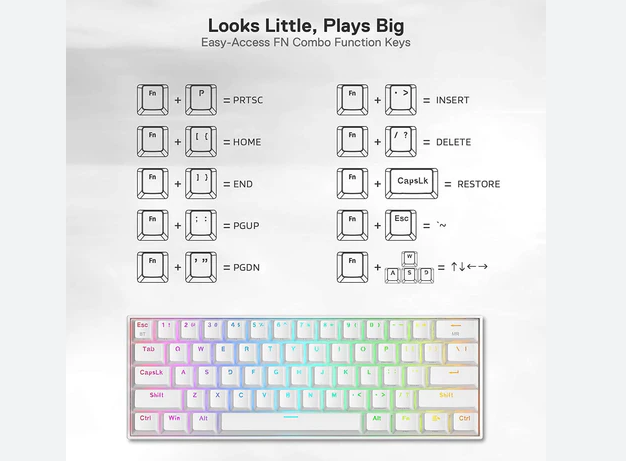
At the heart of 60% keyboard functionality is the FN (Function) key—usually located in the bottom row, near the Spacebar or Ctrl key. Think of it as a "shift" for hidden features: holding FN while pressing another key activates a secondary function, often labeled on the keycap’s side or top.
Most 60% keyboards use a standard base layer (letters, numbers, and basic modifiers like Shift/Ctrl) and a FN layer (arrow keys, F-keys, and navigation tools). Some advanced models add extra layers for macros or custom functions, but beginners should focus on mastering the first two layers first.
Pro tip: Take a photo of your keyboard’s keycap labels (or check the manual) and keep it handy. Note where the FN key is positioned—this will be your most-used key in the early days.
These shortcuts replace the missing arrow keys, function row, and navigation buttons. While exact mappings vary by brand (e.g., Keychron, Anne Pro, or Ducky), most follow similar logic. We’ll use common mappings as examples—adjust based on your keyboard’s layout.
Arrow keys are critical for typing, editing, and browsing, so memorizing their FN combinations is step one:
FN + W (or I) = Up
FN + S (or K) = Down
FN + A (or J) = Left
FN + D (or L) = Right
Why the variations? Some keyboards mimic gaming layouts (WASD), while others use IJKL to align with the home row (a better fit for touch typists). Test both to see which feels more natural. Practice by typing a paragraph, then using these shortcuts to move the cursor back and correct mistakes—aim for smooth transitions between typing and navigating.
F-keys are essential for software shortcuts (e.g., F5 to refresh, F11 for fullscreen). On 60% keyboards, they’re almost always mapped to the number row via FN:
FN + 1 = F1
FN + 2 = F2
...and so on up to FN + = (or 0) = F12
These are game-changers for productivity: Use F5 to refresh web pages, F12 to open developer tools in browsers, or F9-F12 for media controls (play/pause, volume) in apps like Spotify.
For skipping through documents or code, these shortcuts save endless scrolling:
FN + U = Home (jump to the start of a line)
FN + O = End (jump to the end of a line)
FN + P = Page Up
FN + [ = Page Down
Pro tip: Combine these with Ctrl (e.g., Ctrl + FN + U) to jump to the start of a document, or with Shift (e.g., Shift + FN + O) to select text from your cursor to the end of the line.
While 60% keyboards lack a dedicated numpad, you can access numbers via the top row (1-0) as usual. For calculations or data entry, some models include a numpad layer activated by FN + N or a dedicated key—check your keyboard’s manual for specifics.
Once you’ve nailed the basics, adapt these shortcuts to your daily activities for faster mastery.
FN + Backspace = Delete (forward deletion, like the Delete key on full-size keyboards)
Ctrl + FN + A/J (Left) = Highlight a word to the left
Ctrl + FN + D/L (Right) = Skip to the start of the next word
Alt + FN + W/I (Up) = Move the current line up (in Word, Google Docs, or code editors)
FN + F5 (FN + 5) = Refresh page
FN + F11 (FN + -) = Toggle fullscreen
Ctrl + FN + P (Page Up) = Scroll to top
Ctrl + FN + [ (Page Down) = Scroll to bottom
FN + Esc = Toggle game mode (disables Windows key to avoid accidental exits)
FN + Space = Toggle macro recording (on models with macro support)
Map WASD to arrow keys via software (e.g., VIA) if your game relies on arrow key controls
Like learning to touch-type, mastering 60% shortcuts takes consistent practice. Try these drills:
5-Minute Navigation Drills: Open a blank document and type a few paragraphs. Use only FN shortcuts to:
Move the cursor to the start of a line (Home)
Jump to the end of a sentence (End)
Delete a word to the right (FN + Backspace)
Highlight a full line (Shift + Home/End)
F-Key Challenge: Open a browser and complete these tasks using F-key shortcuts:
Refresh the page (F5)
Open developer tools (F12)
Save a bookmark (F10 + Enter, or browser-specific shortcuts)
Gaming Warm-Up: In your favorite game, spend 10 minutes using FN shortcuts for actions like opening the map (F1) or reloading (F5). Focus on pressing FN without looking down at the keyboard.
If your keyboard supports software (e.g., VIA, QMK, or brand-specific tools like Keychron Configurator), remap shortcuts to fit your habits. For example:
Swap the FN layer’s arrow keys to IJKL if WASD feels awkward.
Move the Delete function to a more accessible key (e.g., FN + Enter).
Assign frequently used macros (e.g., "Ctrl + C/V") to unused keys.
Even without software, many 60% keyboards let you record hardware macros by holding FN + a designated key (check the manual). This is great for repetitive tasks like formatting text or gaming commands.
Overlooking the manual: Each brand (e.g., Vortex, Planck, or Redragon) uses slightly different mappings. Don’t assume all 60% keyboards work the same!
Relying on visual checks: Staring at the keyboard slows you down. Trust the muscle memory—if you fumble, pause, recall the shortcut, and try again.
Skipping practice for "big tasks": Don’t wait until you’re writing an essay or gaming competitively to use shortcuts. Start with low-stakes tasks like texting or note-taking.
Most users report feeling comfortable with basic shortcuts in 1-2 weeks of daily use. Full fluency—where shortcuts feel as instinctive as pressing "A" or "B"—takes 4-6 weeks. The key is consistency: even 10 minutes of focused practice daily beats occasional marathon sessions.
The 60% keyboard’s learning curve is temporary, but its benefits—more desk space, less hand movement, and portability—are permanent. By starting with these essential shortcuts and practicing daily, you’ll soon wonder how you ever used a bulkier keyboard. Remember: every pro was once a beginner fumbling with FN combinations. Stick with it, and you’ll unlock a faster, cleaner way to interact with your devices.

