

The central processing unit (CPU) serves as the "brain" of a computer, and its temperature directly impacts performance, stability, and lifespan. Understanding safe CPU temperature ranges in different usage scenarios is crucial for every user, from casual surfers to hardcore gamers. This article breaks down normal temperature thresholds for various activities and provides actionable solutions to tackle overheating.
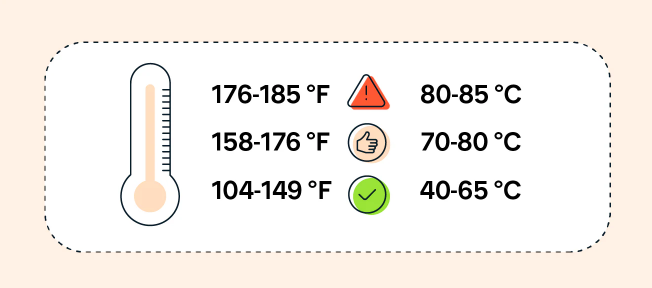
In general, a CPU operates safely when its temperature stays within a range that avoids thermal throttling (performance reduction to prevent damage) and long-term hardware degradation. Most modern CPUs—whether from Intel or AMD—share baseline safety guidelines:
Idle state: When the computer is running minimal tasks (e.g., browsing, word processing with no background apps), safe temperatures typically range from 30°C to 50°C (86°F to 122°F). Cooler idle temps (closer to 30°C) indicate efficient cooling.
Moderate usage: Activities like streaming videos, multitasking with office software, or light photo editing fall here. Safe temperatures usually sit between 40°C and 70°C (104°F to 158°F).
Heavy workloads: Gaming, video rendering, 3D modeling, or running CPU-intensive software pushes temps higher. Safe ranges here are 60°C to 85°C (140°F to 185°F).
Critical threshold: Most CPUs will start thermal throttling above 85°C to 90°C (185°F to 194°F) to avoid damage. Sustained temperatures above 95°C (203°F) can lead to permanent hardware failure.
Note: These ranges are general guidelines. Some high-performance CPUs (e.g., Intel Core i9 or AMD Ryzen 9) are designed to run slightly hotter under load, with safe thresholds up to 90°C. Always check your CPU manufacturer’s specifications for exact limits.
Idle state: Minimal processing power is used, so heat generation is low. Efficient cooling systems (fans, heat sinks) can easily keep temps in the 30–50°C range.
Moderate usage: Light multitasking increases CPU utilization (typically 20–50%), generating more heat. Cooling systems work harder but should still maintain temps below 70°C.
Heavy workloads: CPU utilization spikes to 80–100%, causing significant heat output. High-performance coolers (liquid cooling, larger heat sinks) are necessary to prevent overheating here.
Environmental factors: Room temperature, dust buildup, and poor ventilation can exacerbate heat issues. A hot room (above 25°C/77°F) or a dusty heat sink will make it harder for the CPU to stay cool.
Before addressing overheating, you need to monitor your CPU’s temperature. Here are reliable tools for different operating systems:
Windows: HWMonitor, Core Temp, or NZXT CAM (also tracks GPU temps).
macOS: iStat Menus or TG Pro.
Linux: lm-sensors (command-line tool) or Psensor (graphical interface).
These tools display real-time temperatures, allowing you to check temps during idle, moderate, and heavy usage.
If your CPU consistently exceeds safe temperature ranges, take these steps to cool it down:
Dust is a major culprit—over time, it clogs heat sinks, fans, and air vents, reducing cooling efficiency.
Clean the inside: Power off the computer, open the case, and use compressed air to blow dust from the CPU fan, heat sink, and vents. For laptops, use a soft brush to dislodge dust from air intakes.
Ensure proper airflow: Keep the computer on a hard, flat surface (not a bed or couch) to avoid blocking vents. For desktops, arrange cables to prevent airflow obstructions, and consider adding extra case fans if the case feels hot.
Check fan functionality: Ensure the CPU fan is running smoothly. A faulty fan (making unusual noises or not spinning) should be replaced immediately.
Upgrade cooling: If you’re using a stock cooler (included with most CPUs) and frequently run heavy workloads, upgrade to an aftermarket air cooler or liquid cooling system. Liquid coolers are more effective for high-performance CPUs.
Replace thermal paste: Over time, thermal paste (which conducts heat from the CPU to the heat sink) dries out. Reapplying high-quality thermal paste (e.g., Arctic Silver, Noctua NT-H1) can lower temps by 5–10°C.
Close unnecessary apps: Background processes (e.g., unneeded browser tabs, antivirus scans) can increase CPU utilization. Use Task Manager (Windows) or Activity Monitor (macOS) to end resource-heavy tasks.
Limit overclocking: Overclocking (running the CPU at higher speeds than default) increases heat output. If you’ve overclocked your CPU, revert to default settings or reduce the overclock to lower temps.
Enable power-saving modes: For laptops, switch to "Power Saver" mode in Windows or "Battery Saver" in macOS to reduce CPU performance and heat generation.
Lower room temperature: Use air conditioning or a fan to keep the room cool (ideally between 18°C and 24°C/64°F and 75°F).
Avoid direct sunlight: Keep the computer away from windows or heat sources (heaters, lamps) that can raise ambient temperatures.
Maintaining CPU temperatures within safe ranges is key to preserving your computer’s performance and longevity. By understanding normal temps for idle, moderate, and heavy usage, monitoring regularly, and taking steps to improve cooling, you can keep your CPU running efficiently for years. Remember: when in doubt, refer to your CPU manufacturer’s guidelines for specific temperature limits.

