

In the daily use of Windows operating systems, we often encounter situations like unresponsive programs or a lagging computer. At such times, Task Manager becomes our lifesaver—it helps monitor running processes, end frozen applications, and track system resource usage. Knowing the shortcuts to open Task Manager can significantly boost efficiency when dealing with emergencies. This article details these practical shortcuts, their use cases, and related tips.
This is the quickest and most straightforward way to launch Task Manager. With a single press, it skips all intermediate steps and immediately opens the Task Manager window.
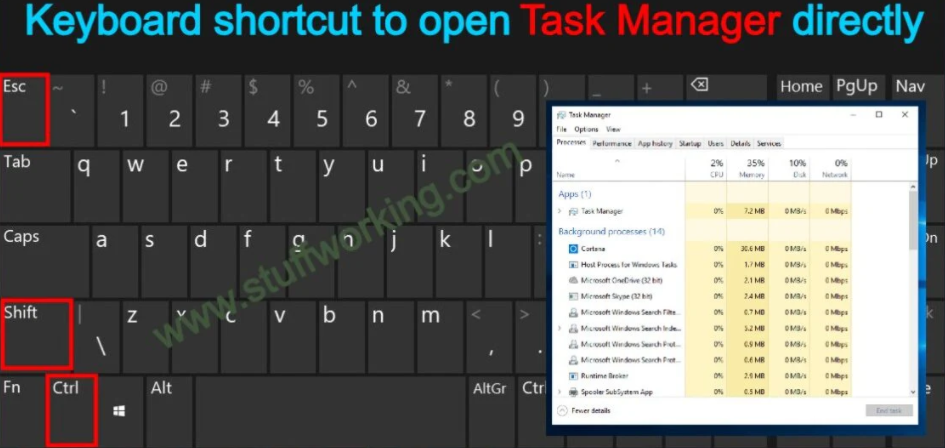
Use Case: Even when the desktop is unresponsive due to severe lag or a frozen program, this key combination usually works, allowing you to quickly terminate problematic processes.
Advantage: Unlike other methods, it bypasses intermediate interfaces (such as right-clicking the taskbar or using Ctrl + Alt + Del), making it highly efficient.
This shortcut acts as a "master emergency switch" for Windows. While it doesn’t open Task Manager directly, it leads to a menu that includes it:
Press Ctrl + Alt + Del to bring up a screen with options like "Lock," "Switch user," "Sign out," and "Task Manager."
Click "Task Manager" to open it.
Use Case: This is particularly useful when the system faces critical issues, and the first shortcut fails. It’s also commonly used to lock the computer quickly (preventing unauthorized access).
If you prefer using the "Run" dialog, follow these steps to open Task Manager:
Press Win + R to launch the "Run" window.
Type "taskmgr" in the input box and press Enter or click "OK."
Advantage: The "Run" window is a versatile gateway for accessing system tools. Memorizing "taskmgr" lets you open Task Manager not just here, but also in command prompts or scripts.
Though not a shortcut, this method is worth mentioning for its simplicity:
Right-click an empty area on the taskbar and select "Task Manager." It’s ideal when the desktop is functioning normally, offering a straightforward approach.
For daily quick access: Prioritize Ctrl + Shift + Esc for instant results.
For system emergencies: Try Ctrl + Alt + Del and select Task Manager from the security screen.
For "Run" window users: Remember the flow Win + R + taskmgr.
Mastering these ways to open Task Manager will make you more confident when troubleshooting computer issues. Beyond ending processes, Task Manager lets you monitor real-time CPU, memory, and disk usage—learning to use it will enhance your overall Windows experience.

