Task Manager is a very useful tool in the Windows system. It not only allows you to view running programs and processes but also displays information about system hardware, including RAM speed.
Open Task Manager:
Method 1: Right-click the taskbar and then select "Task Manager".
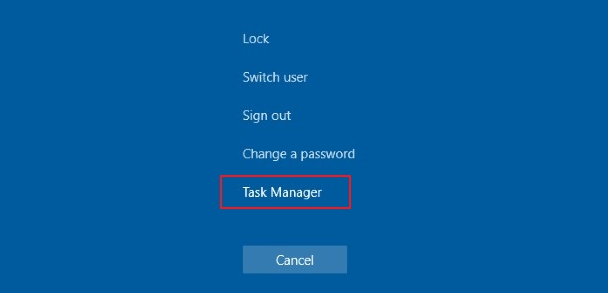
Method 2: Press the "Ctrl + Shift + Esc" key combination on the keyboard at the same time. This is the quickest way to open Task Manager.

Enter the Performance tab: In the opened Task Manager window, click the "Performance" tab at the top.
View memory information: In the left list of the "Performance" tab, click "Memory". At this point, in the right window, you will see various information about the memory. Among them, the "Speed" item shows your RAM speed, and the unit is usually MHz (Megahertz).
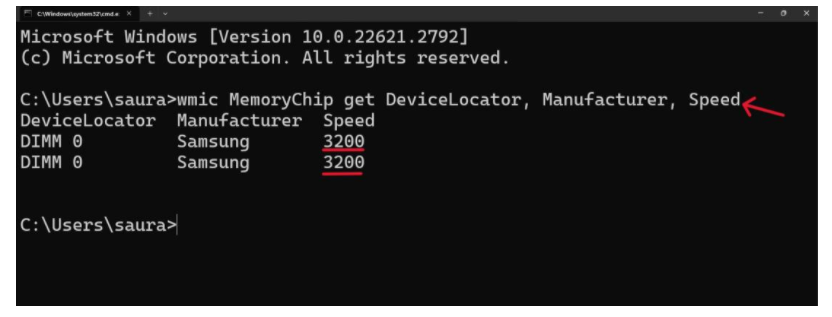
Command Prompt is a powerful tool provided by the Windows system. By entering specific commands, you can perform various system operations, including checking RAM speed.
Open Command Prompt:
Press the "Win + R" key combination on the keyboard to open the "Run" dialog box.
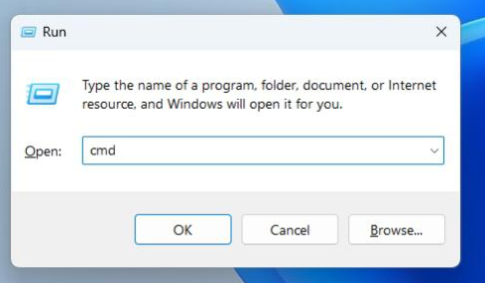
In the "Run" dialog box, enter "cmd", then click "OK" or press the Enter key to open the Command Prompt window.
Enter the command: In the Command Prompt window, enter the following command:
wmic memorychip get speed
View the result: After pressing the Enter key, the system will list the speed information of all memory modules. If your computer has multiple memory modules installed, the speed of each memory module will be displayed separately here.