

Keyboard key delay—where there’s a lag between pressing a key and the action appearing on screen—can be frustrating, whether you’re typing, gaming, or working. The good news is that this issue is often fixable with simple adjustments. Below are practical, step-by-step solutions to reduce or eliminate key delay.
System-level settings control how your keyboard responds to key presses, and misconfigurations here are a common cause of delay.
Open Settings (press Win + I), then go to Time & Language > Typing.
Click Advanced keyboard settings (on the right).
Under “Keyboard properties,” click Change keyboard settings > Speed.
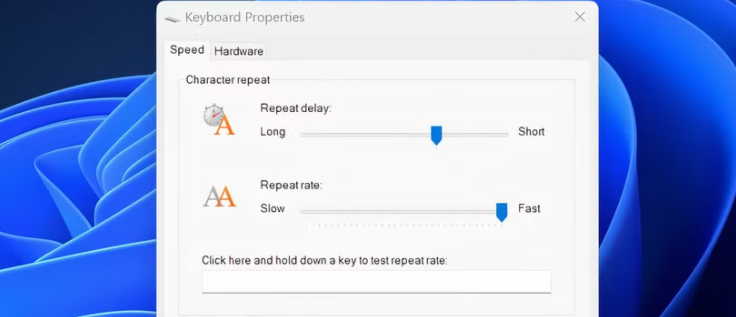
Repeat delay: This controls how long you must hold a key before it starts repeating (e.g., holding “a” to type “aaaa”). Set it to Short to reduce lag.
Repeat rate: This controls how fast repeated characters appear. Set it to Fast for quicker response.
Click Apply then OK to save changes.
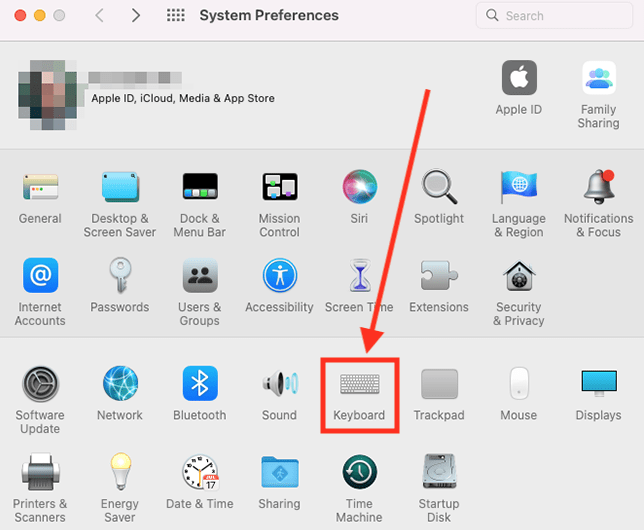
Open System Settings (click the Apple icon > System Settings).
Go to Keyboard.
Adjust Key Repeat to Fast (move the slider right).
Adjust Delay Until Repeat to Short (move the slider left).
Close the settings—changes take effect immediately.
Outdated or corrupted drivers can cause communication delays between your keyboard and computer.
Check for driver updates:
On Windows: Open Device Manager (press Win + X > Device Manager). Expand Keyboards, right-click your keyboard (e.g., “HID Keyboard Device”), and select Update driver. Choose “Search automatically for drivers” and follow prompts.
On Mac: Drivers update automatically with macOS updates. Go to System Settings > General > Software Update to install pending updates.
Reinstall the driver (if updating doesn’t work):
On Windows: In Device Manager, right-click your keyboard and select Uninstall device. Restart your computer—Windows will automatically reinstall the driver.
These features are designed to ignore accidental key presses but can introduce delay if enabled unintentionally.
Windows (Filter Keys):
Open Settings > Accessibility > Keyboard.
Ensure Filter Keys is toggled Off. If enabled, it slows key response to filter out brief, accidental presses.
Mac (Slow Keys):
Open System Settings > Accessibility > Keyboard.
Under “Typing,” ensure Slow Keys is toggled Off. This feature adds a delay between pressing a key and it registering.
If software fixes don’t work, the problem may be with the keyboard itself.
Test with another keyboard: Connect a different keyboard (wired or wireless) to your device. If the new keyboard has no delay, your original keyboard may be faulty (e.g., worn-out switches or a damaged cable).
Clean the keyboard: Dirt, dust, or debris under keys can block presses and cause lag. Turn off your device, use compressed air to blow out debris, or gently pry keys (if safe) to clean underneath.
For wireless keyboards:
Replace batteries (if using AA/AAA) or charge the keyboard fully—low power causes signal delays.
Move the keyboard closer to the wireless receiver (for USB receivers) or ensure no metal objects/electronics (e.g., routers) are blocking the signal.
If your computer is running too many apps, it may struggle to process keyboard inputs quickly, causing delay.
Windows: Press Ctrl + Shift + Esc to open Task Manager. Go to the Processes tab, right-click apps you don’t need (e.g., unused browsers, video editors), and select End task.
Mac: Press Cmd + Space to open Spotlight, type “Activity Monitor,” and press Enter. In the CPU tab, select resource-heavy apps and click the X icon to quit them.
If delay occurs only while gaming, in-game settings may be the culprit.
Open your game’s settings and look for “Input” or “Keyboard” options.
Disable keyboard input buffering (if available)—this feature delays inputs to “smooth” them but adds lag.
Lower in-game graphics settings: A overloaded GPU/CPU can slow down all inputs, including keyboard.
Rarely, malware or corrupted system files can cause input delays.
Run a full antivirus scan (use Windows Defender, Mac’s built-in antivirus, or a trusted third-party tool).
For Windows: Repair system files by opening Command Prompt as Administrator and typing sfc /scannow. Restart after the scan finishes.
For Mac: Use Disk Utility (search via Spotlight) to run “First Aid” on your startup disk.
If all above steps fail:
Try the keyboard on another device. If delay persists, the keyboard itself is likely faulty (e.g., worn switches or a damaged circuit).
For laptop keyboards, contact the manufacturer (e.g., Lenovo, Dell) or a certified repair service—internal connections may need rechecking.
Key delay is rarely permanent. Start with adjusting system keyboard settings and updating drivers—these fix most issues. If problems continue, check for hardware faults or reduce system load. With these steps, you should notice a significant improvement in keyboard responsiveness.

