

Sticky Keys is a useful accessibility feature designed to help users with motor disabilities by allowing them to press keyboard shortcuts sequentially instead of simultaneously. However, there are times when this feature might activate accidentally, causing inconvenience during typing or navigation. If you find yourself wondering how to undo Sticky Keys, this comprehensive guide will walk you through the process for different operating systems and provide troubleshooting tips.
Before delving into the methods to undo Sticky Keys, it’s essential to recognize when the feature is active. Typically, you’ll notice a visual prompt on your screen, such as a dialog box or an icon in the taskbar, indicating that Sticky Keys has been enabled. Additionally, you might experience unusual keyboard behavior, such as keys not responding as expected when pressed together.
Sticky Keys can be triggered accidentally in several ways. The most common activation method is by pressing the Shift key five times in succession, which is the default shortcut to enable or disable the feature. This can happen inadvertently while typing or if you accidentally brush against the Shift key multiple times. Other causes include system settings that automatically enable accessibility features or issues with keyboard drivers.
The fastest way to undo Sticky Keys on Windows is by using the same shortcut that activates it. Simply press the Shift key five times consecutively. A dialog box will appear asking if you want to turn on Sticky Keys. Click "No" to disable the feature immediately. This method works for most versions of Windows, including Windows 10 and Windows 11.
If the quick method doesn’t work or you want to adjust Sticky Keys settings more permanently, follow these steps:
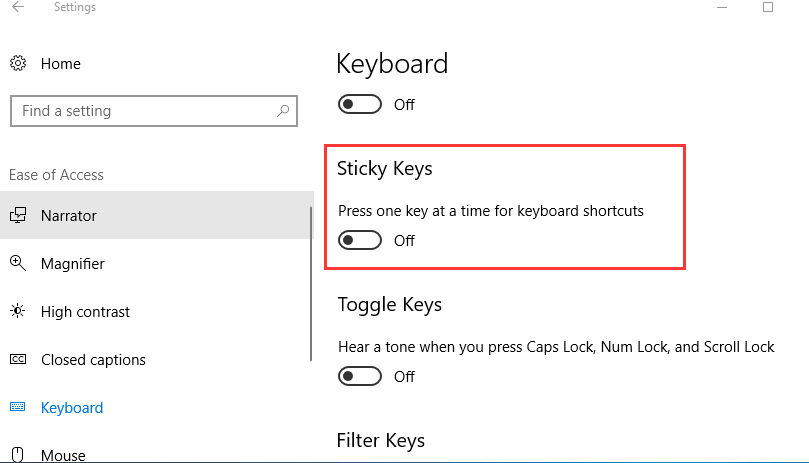
Press the Windows key + U to open the Ease of Access Center directly. Alternatively, you can navigate to it by clicking on the Start menu, selecting "Settings," then "Ease of Access."
In the Ease of Access Center, locate and click on "Keyboard."
Under the Sticky Keys section, you’ll find a toggle switch to turn Sticky Keys on or off. Make sure the switch is in the "Off" position.
You can also uncheck the box next to "Turn on Sticky Keys when Shift is pressed five times" to prevent accidental activation in the future.
For users of older Windows versions, such as Windows 7, the process is slightly different:
Click on the Start menu and open the Control Panel.
Go to "Ease of Access" and then "Ease of Access Center."
Click on "Make the keyboard easier to use."
Under Sticky Keys, uncheck the box next to "Turn on Sticky Keys" and any associated shortcuts to disable the feature.
MacOS has its own version of Sticky Keys, known as "Slow Keys" or "Sticky Keys," which can be disabled using the following steps:
Click on the Apple menu in the top-left corner of your screen and select "System Preferences."
In System Preferences, click on "Accessibility."
On the left-hand side, select "Keyboard."
In the Keyboard settings, you’ll see options for "Sticky Keys" and "Slow Keys." To disable Sticky Keys, uncheck the box next to "Enable Sticky Keys."
If you want to prevent accidental activation, you can also uncheck the box next to "Press the Shift key five times to turn Sticky Keys on or off."
On Mac, you can also disable Sticky Keys quickly by pressing the Option key five times. This will bring up a dialog box asking if you want to enable Sticky Keys. Click "Cancel" to turn it off.
While Android doesn’t have a feature exactly called Sticky Keys, it does have an accessibility feature called "Sticky Keys" for physical keyboards. To disable it:
Go to your device’s "Settings."
Scroll down and select "Accessibility."
Look for "Physical keyboard" or "Keyboard & input methods."
Under keyboard settings, find the "Sticky Keys" option and turn it off.
On iOS devices, the equivalent feature is called "Sticky Keys" within the Accessibility settings:
Open the "Settings" app.
Tap on "Accessibility."
Select "Keyboards."
Turn off the "Sticky Keys" toggle.
If you’re having trouble undoing Sticky Keys, even after following the above steps, consider the following troubleshooting tips:
A simple restart can often resolve temporary glitches that might be causing Sticky Keys to remain enabled. This is especially useful if you suspect a software conflict or temporary system error.
Sometimes, a stuck key or faulty keyboard can cause Sticky Keys to activate repeatedly. Inspect your keyboard for any debris or stuck keys. If you’re using an external keyboard, try disconnecting and reconnecting it, or test with a different keyboard to see if the issue persists.
Outdated keyboard drivers or operating system software can lead to unexpected behavior. Make sure your device is up to date with the latest system updates and that your keyboard drivers are installed correctly.
In rare cases, malicious software might interfere with your system settings, causing accessibility features to activate unexpectedly. Run a full system scan with your antivirus software to check for any threats.
To avoid having to undo Sticky Keys in the future, consider adjusting your system settings:
On Windows, as mentioned earlier, uncheck the option to enable Sticky Keys when the Shift key is pressed five times.
On Mac, disable the five-time Shift key shortcut for Sticky Keys.
For mobile devices, review and adjust accessibility settings to ensure that features like Sticky Keys are only enabled when needed.
If you frequently use external keyboards, be cautious about placing objects on your keyboard that might press keys accidentally.
Undoing Sticky Keys is a straightforward process once you know the right steps for your operating system. Whether you’re using Windows, Mac, or a mobile device, the methods outlined here will help you disable the feature quickly and efficiently. Remember that Sticky Keys is a valuable accessibility tool, but when activated accidentally, it can be easily turned off using the built-in settings or keyboard shortcuts. By following the troubleshooting tips and prevention methods, you can minimize the chances of encountering this issue in the future, ensuring a smoother computing experience.

