

Sticky Keys is an accessibility feature designed to assist users who struggle with pressing multiple keys simultaneously. While it’s helpful for many, accidental activation or personal preference might prompt you to disable it. Below is a comprehensive guide to turning off Sticky Keys across major platforms.
Sticky Keys on Windows allows sequential pressing of modifier keys (Shift, Ctrl, Alt) instead of holding them. Here’s how to disable it:
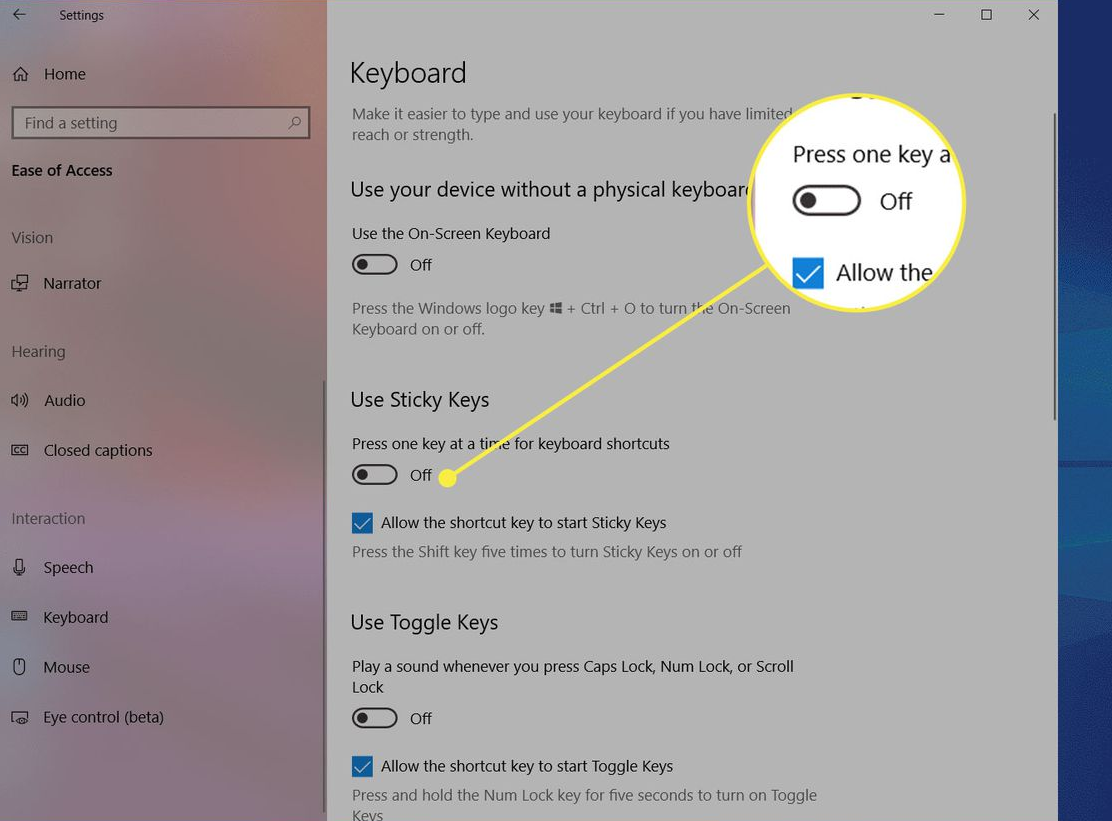
Press Win + I to open Settings.
Navigate to Accessibility > Keyboard.
Under Sticky Keys, toggle off the switch labeled Use Sticky Keys .
Additional Options: Click the arrow next to the switch to disable keyboard shortcuts (e.g., pressing Shift 5 times) and notifications.
Open Control Panel (search for it in the Start menu).
Go to Ease of Access > Ease of Access Center.
Click Make the keyboard easier to use.
Uncheck Turn on Sticky Keys and save changes .
Press Win + R, type regedit, and hit Enter.
Navigate to:HKEY_CURRENT_USER\Control Panel\Accessibility\StickyKeys
Set the value of Flags to 506 (hexadecimal) to disable all Sticky Keys features .
On Mac, Sticky Keys are part of the Keyboard accessibility settings. Follow these steps:
Click the Apple menu > System Preferences.
Select Accessibility > Keyboard > Hardware.
Uncheck Enable Sticky Keys .
Shortcut: Press Option + Command + F5 to toggle Sticky Keys quickly (or triple-click Touch ID if available).
Linux distributions vary, but here’s a general approach:
Open Settings > Accessibility.
Under Keyboard, turn off Sticky Keys .
Go to System Settings > Accessibility > Keyboard.
Disable Sticky Keys.
Use xmodmap to modify keyboard settings. For example:
bash
xmodmap -e "remove Lock = Caps_Lock"
Save changes to ~/.Xmodmap and restart the session.
Sticky Keys on Android (also called "Sticky Touch") helps with touchscreen precision. Disable it as follows:
Open Settings > Accessibility > Interaction controls.
Tap Sticky Keys and toggle off the switch .
iOS uses "Sticky Keys" under AssistiveTouch or Switch Control. Here’s how to disable it:
Go to Settings > Accessibility > Touch.
Under AssistiveTouch, turn off Sticky Keys .
Alternative: Use Switch Control settings to adjust key behavior if needed.
Sticky Keys Keeps Turning On:
On Windows 11, check Accessibility > Keyboard and disable Use Sticky Keys entirely. Ensure no third-party software is overriding settings .
On Mac, verify System Preferences > Accessibility settings.
Hardware Problems:
Clean your keyboard or test it on another device. Stuck keys can mimic Sticky Keys behavior .
Drivers and Updates:
Update keyboard drivers or perform a system reboot to resolve software glitches .
Sticky Keys is a valuable tool for accessibility, but knowing how to disable it ensures smooth keyboard navigation. Whether you’re using Windows, macOS, Linux, or a mobile device, the steps above will help you regain control over your input experience. If issues persist, consult official support documentation or contact a professional for further assistance.

