

Understanding your mouse's DPI (Dots Per Inch) is essential for optimizing its performance, whether you're a gamer seeking precision or a professional needing accuracy. Here's a comprehensive guide to checking your mouse DPI across different platforms and devices.
The simplest method is to refer to the official documentation or product page. Most manufacturers list the DPI range on the box or website. For example, Logitech G-series mice often specify DPI ranges like 200–25,600, while budget models might have fixed values like 1600 DPI. If your mouse is unbranded, proceed to the following methods .
Many gaming mice come with companion software that displays DPI settings. For instance:
Logitech Gaming Software: Download the app from Logitech’s official website, connect your mouse, and check the DPI settings under the "Performance" tab .
Razer Synapse: Install the software for Razer mice to view and customize DPI profiles .
Microsoft Mouse and Keyboard Center: Available for Windows, this tool shows sensitivity settings, which correlate with DPI .
If you don’t have manufacturer software, use Windows Paint to estimate DPI:
Open Paint by searching for it in the Start menu.
Zoom to 100%.
Place the cursor at the top-left corner (coordinates 0,0).
Draw a 1-inch (2.54 cm) horizontal line using a ruler as a guide.
Check the width in pixels at the line’s end (bottom-left corner).
DPI = Pixels ÷ 1 inch. For example, 1600 pixels = 1600 DPI .
MacOS doesn’t display DPI directly, but you can:
Adjust Tracking Speed:
Go to System Preferences > Mouse > Point & Click.
Use the slider to set sensitivity, then test with an online tool like DPI Analyzer (available onmouse-sensitivity.com) .
Third-Party Apps: Tools like SteerMouse or USB Overdrive provide advanced DPI control .
These free tools offer quick, accurate measurements:
DPI Analyzer: Visit mouse-sensitivity.com/dpi-analyzer, input your target distance (e.g., 1 inch), and drag the cursor to see your DPI .
MouseTester: Use the ruler-based interface on mousetester.cn/dpi-test.html to measure DPI by moving your mouse 10 cm and calculating pixels .
IsMyDPIOK: A simple ruler-based tool for real-time adjustments .
For Linux users:
Check via Terminal:
Run xinput list to find your mouse ID.
Use xinput get-prop [ID] "Device Accel Constant Deceleration" to view sensitivity (though not exact DPI) .
Third-Party Tools: Apps like xinput_calibrator or online tools can help estimate DPI .
Many gaming mice have DPI toggle buttons that display the current setting on-screen or via an LED indicator. For example:
Press the DPI button on Logitech G502 or Razer DeathAdder to cycle through presets .
If your mouse lacks a display, use the manufacturer’s software to set and monitor DPI.
Disable Mouse Acceleration:
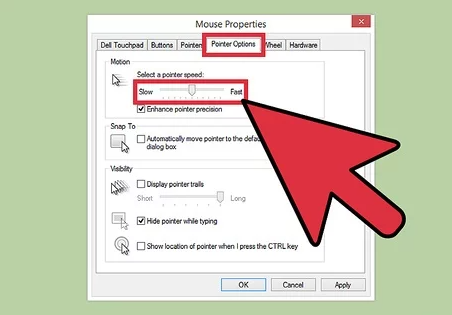
Windows: In Control Panel > Mouse > Pointer Options, uncheck "Enhance pointer precision" .
Mac: Ensure "Natural scrolling" is off in System Preferences > Mouse .
Test Multiple Times: Average results from 3–5 trials to reduce errors .
Use Consistent Surfaces: Test on your regular mouse pad, as different surfaces affect sensor accuracy .
Gaming: Low DPI (400–800) offers precise aim in FPS games, while high DPI (1600+) suits fast-paced MOBAs .
Productivity: Higher DPI speeds up cursor movement on large or high-resolution screens.
Design: Artists benefit from lower DPI for pixel-level precision.

