

In the world of computer hardware, the BIOS (Basic Input/Output System) is like a bridge connecting hardware and the operating system. Though it stays behind the scenes, it controls crucial functions. For users with MSI (Micro-Star International) motherboards, updating the BIOS in a timely manner can not only fix potential vulnerabilities and optimize system compatibility but also potentially unlock support for new hardware and performance improvement space. This article will comprehensively analyze the importance, risks, preparation work, and specific operation methods of MSI BIOS updates, helping you complete the BIOS upgrade safely and efficiently.
I. Why Update MSI BIOS?
With the development of technology, the BIOS system will also face various security threats and operational vulnerabilities. MSI pushes patches through BIOS updates to fix security vulnerabilities that may be exploited by malware, resisting risks such as ransomware attacks and hardware-level virus intrusions. At the same time, updating the BIOS can solve common stability issues like hardware conflicts and blue screen crashes, making the system run more smoothly. For example, a certain batch of MSI motherboards previously had frequent device disconnections due to defects in the USB driver, and this problem was effectively solved after a BIOS update.
When you upgrade key hardware such as the CPU and graphics card, the old version of the BIOS may not recognize them or provide optimal support. The new versions of BIOS released by MSI are often optimized for new hardware to ensure that the hardware performance can be fully exerted. Take AMD's launch of the new generation of Ryzen processors as an example. MSI updated the BIOS in a timely manner, enabling old motherboards to perfectly adapt to the new CPUs, allowing users to enjoy the powerful performance of new hardware without replacing the motherboard.
BIOS updates often include optimizations for functions such as memory overclocking and CPU turbo boosting, which can tap into the potential performance of hardware. By updating the BIOS, users can achieve a higher memory frequency to improve data transmission speed, or allow the CPU to maintain a more stable high-frequency operation under high loads, thereby significantly improving performance in application scenarios such as game frame rates and rendering speeds.
II. Necessary Preparations for MSI BIOS Update
Accurately identifying the motherboard model is a prerequisite for obtaining the correct BIOS file. You can check the model label on the motherboard, find the motherboard information in the system device manager, or use the "MSI Center" software officially provided by MSI for automatic detection. For example, the MSI Z690-A PRO WIFI DDR4 motherboard and the MSI Z690-A PRO WIFI DDR5 motherboard have similar models but completely different BIOS files. Downloading the wrong one may lead to failure in normal update or even damage to the motherboard.
Visit the official MSI website (https://www.msi.com/), enter the "Support" page, input the motherboard model, and you can find the corresponding BIOS version. It is recommended to select the "Recommended Version" or the latest released stable version, and avoid using beta BIOS to prevent unnecessary risks. When downloading, pay attention to saving the file path, ensure that the file name is not modified, and the file format is ".CAP" (the common BIOS file format for MSI motherboards).
Use a USB 2.0 or USB 3.0 flash drive with a capacity of not less than 8GB, and format it to the FAT32 file system. Please back up important data in the USB flash drive before formatting. After formatting, copy the downloaded BIOS file to the root directory of the USB flash drive, and avoid placing it in a folder.
Although the BIOS update operation generally does not affect hard disk data, to prevent data loss caused by unexpected situations (such as power outage and update failure), it is recommended to back up important files, data, and system settings in the computer in advance. You can back up through external hard drives, cloud storage, etc.
During the BIOS update process, ensure that the computer is connected to an uninterruptible power supply (UPS) or directly powered by a power adapter to avoid serious consequences of the motherboard being unable to start due to power outage interrupting the BIOS update.
III. Three Practical Methods for MSI BIOS Update

Step 1: Insert the USB flash drive containing the BIOS file into the motherboard's USB interface, restart the computer, and press the "Delete" key when the boot screen appears to enter the BIOS settings interface.
Step 2: In the BIOS main menu, select the "M-Flash" option. After entering the M-Flash interface, the system will automatically detect the BIOS file in the USB flash drive.
Step 3: Select the correct BIOS file, click the "Update" button, and the system will automatically start the update process. Do not operate the computer or turn off the power during this process. Wait for the progress bar to complete, and the computer will automatically restart to finish the BIOS update.
Step 1: Similarly, insert the USB flash drive containing the BIOS file into the motherboard and enter the BIOS settings interface.
Step 2: Find the "Tools" or "Update BIOS" option in the BIOS menu (the location may vary for different motherboard models), and select to update the BIOS from the USB device.
Step 3: Select the BIOS file in the USB flash drive from the file list and confirm the update operation. Wait for the update to complete, and the computer will restart automatically.
Step 1: Download and install the "Live Update" software officially provided by MSI, which can be downloaded from the MSI official website.
Step 2: Open the Live Update software, which will automatically detect the computer's hardware information and scan for available BIOS updates.
Step 3: If a new version of BIOS is detected, click the "Download" button. After the download is completed, click "Install". The software will automatically complete the BIOS update process, during which the computer will restart multiple times automatically without manual intervention.
IV. Countermeasures for BIOS Update Failure
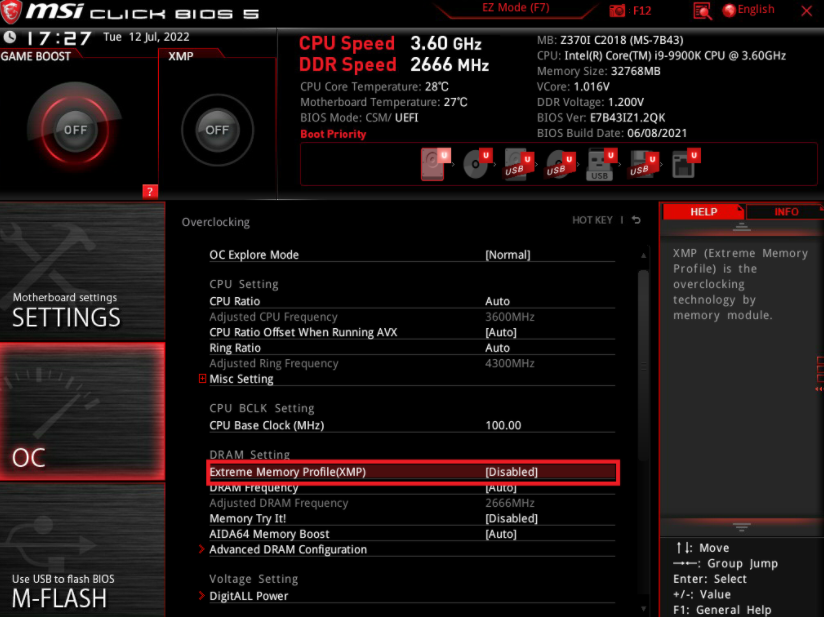
Despite full preparations, BIOS updates may still fail for various reasons. If problems occur during the update process, causing the computer to fail to start normally, you can try the following solutions:
Some MSI motherboards are equipped with a BIOS Flashback button or interface. Insert the USB flash drive containing the BIOS file into the specified USB interface, press the BIOS Flashback button (or press and hold it for a few seconds), the motherboard indicator will flash. Wait for the indicator to turn off, then try to restart the computer, and the system will automatically restore the BIOS.
If the above methods cannot solve the problem, it is recommended to contact the official MSI after-sales service center or professional maintenance personnel. Do not disassemble the motherboard by yourself to try to repair it, so as not to cause greater damage.
Updating the MSI BIOS is an important means to optimize computer performance and ensure system security and stability. As long as you strictly follow the steps in this article to do the preparation work, select the appropriate update method, and remain cautious during the update process, you can easily complete the BIOS upgrade and make your computer hardware exert its maximum potential.

