

The Task Manager is an essential tool in the Windows operating system. It allows you to monitor system performance, view running programs and processes, manage startup items, and end unresponsive programs. Here are several ways to open the Task Manager on Windows 7, Windows 10, and Windows 11.
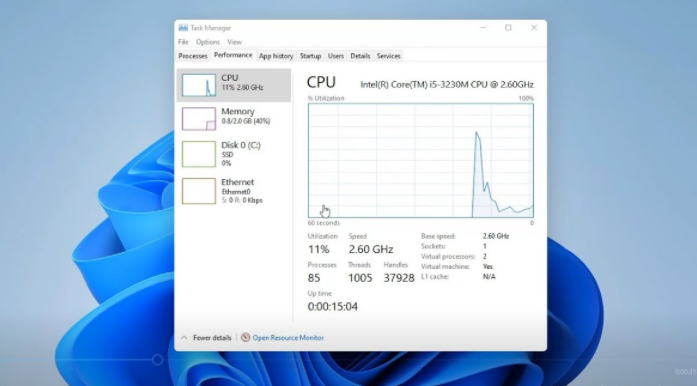
This is the quickest way to open the Task Manager on all three versions of Windows. Simply press the "Ctrl", "Shift", and "Esc" keys simultaneously, and the Task Manager will pop up immediately.
Pressing "Ctrl", "Alt", and "Delete" brings up a security options menu. In Windows 7, you can directly select "Start Task Manager" from this menu. In Windows 10 and Windows 11, click on "Task Manager" in the menu that appears.
In Windows 10 and Windows 11, pressing the "Windows" key and "X" opens the Quick Link menu. Select "Task Manager" from this menu to open it.
Click the "Start" button in the bottom - left corner of the screen. Type "Task Manager" or "taskmgr" in the search box, and then select "Task Manager" from the search results.
Click the "Start" button, select "All Programs", then find the "Accessories" folder. Inside "Accessories", select "System Tools", and finally click on "Task Manager".
Press the "Windows + R" keys to open the Run dialog box. In the text box, type "taskmgr" and press "Enter". The Task Manager will open. This method works on all Windows 7, Windows 10, and Windows 11 systems.
On all three versions of Windows, you can right - click on an empty area of the taskbar. In the context menu that appears, select "Task Manager" to open it.
Select the File Explorer (folder icon) from the Windows 11 taskbar. If you don't see the icon, press "Win + E".
Select a blank part in the address bar at the top of File Explorer to highlight the current path. You can also use the "Alt + D" keyboard shortcut for this.
Type "taskmgr" in the address bar instead of the existing path and press "Enter".
Open File Explorer.
In the address bar, type "C:\Windows\System32\taskmgr.exe" and press "Enter". This will directly open the Task Manager as "taskmgr.exe" is the executable file for the Task Manager.
Press "Windows + R" to open the Run dialog box.
Type "cmd" and press "Enter" to open the Command Prompt.
In the Command Prompt window, type "taskmgr" and press "Enter". The Task Manager will open. This method works for Windows 7, Windows 10, and Windows 11.
Press "Windows + X" and select "Windows PowerShell" or "Windows PowerShell (Admin)" (for administrative tasks).
In the PowerShell window, type "taskmgr" and press "Enter". This method is available in Windows 10 and Windows 11.
Right - click on an empty area of the desktop.
Select "New" > "Shortcut".
In the "Create Shortcut" window, type "taskmgr.exe" (for Windows 10 and Windows 11) or "C:\Windows\System32\taskmgr.exe" (for Windows 7), and then click "Next".
Give the shortcut a name, such as "Task Manager", and click "Finish". Now, you can double - click this desktop shortcut to open the Task Manager at any time.
By knowing these various methods, you can quickly access the Task Manager in different situations, whether you prefer using the keyboard, mouse, or command - line tools.

