

In the world of computers, CMOS (Complementary Metal-Oxide-Semiconductor) plays a vital role. It stores the configuration information of the computer’s BIOS (Basic Input/Output System), including system time, date, boot order, and hardware parameters. This information acts like the computer’s "memory," helping it correctly configure hardware during each startup to ensure stable operation. However, in some cases, we need to reset CMOS to restore these settings to factory defaults. Why reset CMOS, and how to do it? This article explains in detail.
Fix unresponsive startup
Incorrect BIOS settings or a weak CMOS battery may corrupt CMOS data, causing the computer to fail to start. Clearing CMOS resets these settings, allowing the computer to use default configurations and boot normally.
Resolve memory incompatibility
After installing new memory modules, mismatched parameters with previous BIOS settings may prevent startup. Clearing CMOS restores default memory settings, enabling the computer to recognize new memory.
Remove BIOS password
If you forget the BIOS password, clearing CMOS will erase it, letting you re-enter BIOS and set a new password.
Battery Removal Method (Universal)
Power off: Shut down the computer and unplug the power cord.
Open the case: Remove the side panel to access the motherboard.
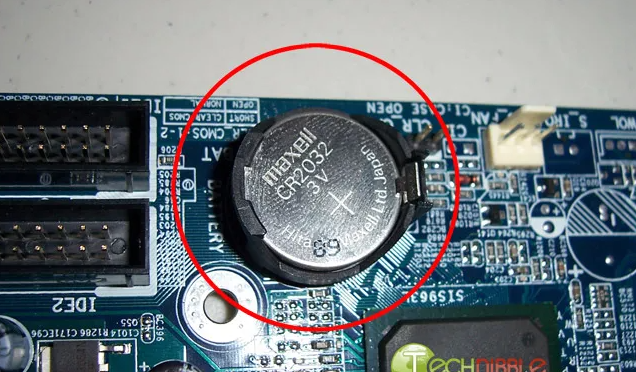
Locate the battery: Find the round CR2032 coin-shaped battery on the motherboard.
Remove the battery: Gently press the clip to take out the battery; wait 3–5 minutes to discharge.
Reassemble: Put the battery back (check polarity), close the case, plug in the power, and start the computer.
Jumper Clearing Method (For Some Motherboards)
Power off: Ensure the computer is fully powered off and unplugged.
Find the jumper: Locate the 3-pin jumper labeled "CLR_CMOS" or "BIOS" near the battery.
Short-circuit: By default, the jumper cap connects pins 1–2. Move it to pins 2–3 for 10–15 seconds, then restore it to 1–2.
Start up: Plug in the power; BIOS will reset to defaults.
Enter BIOS
After restarting, press the key prompted on the screen (e.g., Del, F2, F10) to enter BIOS.
Set time and date
Find "Date" and "Time" in BIOS, adjust to the correct values, and save (usually with F10).
Adjust boot order
Go to the "Boot" menu, find "Boot Device Priority," select your preferred boot device (e.g., hard drive, USB), adjust its order, and save.
Restore custom settings
Reconfigure previous custom settings (e.g., CPU overclocking, memory frequency) if needed. Proceed with caution when overclocking to avoid hardware damage.
Q: BIOS not reset after operation?
A: Ensure the computer was fully powered off. Replace the CMOS battery if it’s aging.
Q: Will it delete hard drive data?
A: No. It only resets BIOS settings, not files on storage devices.
Q: Are overclocking settings retained?
A: No. Reconfigure them in BIOS if needed (proceed with caution).
Q: Computer still won’t start after reset?
A: Check for operational errors (e.g., reversed battery polarity, incorrect jumper placement). If steps are correct, there may be hardware issues (e.g., loose memory, faulty power supply); consult a professional if unsure.
With these steps, you can successfully reset CMOS to resolve common issues. Always prioritize safety when handling hardware, and double-check settings after resetting.

