

In the ever-evolving world of gaming, visual fidelity has become a key battleground for immersive experiences. Among the 诸多 technologies aiming to elevate graphics, Auto HDR stands out as a controversial yet widely discussed feature. Introduced by Microsoft for Xbox consoles and Windows 10/11, Auto HDR claims to convert standard dynamic range (SDR) games into high dynamic range (HDR) in real time, promising richer colors and more detailed contrasts without developer intervention. But the question remains: Should you keep Auto HDR on for gaming, or is it better left off? Let’s dive into the details to help you decide.
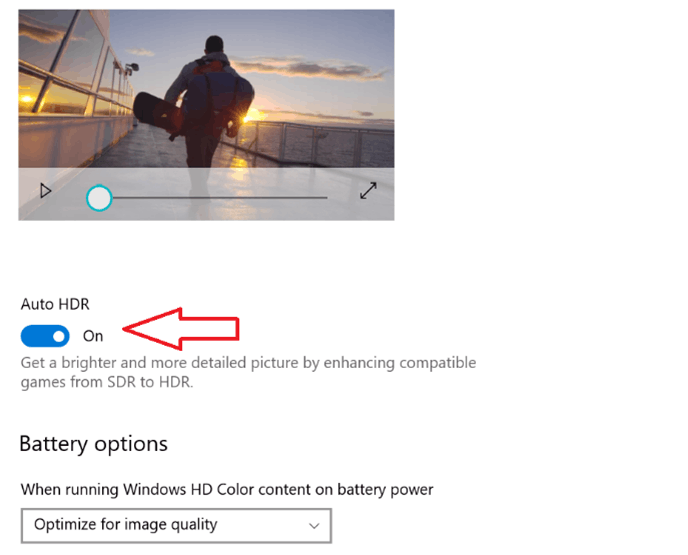
Before weighing its pros and cons, it’s crucial to understand what Auto HDR does. Unlike native HDR, which is built into a game by developers to natively render scenes with a wider dynamic range, Auto HDR is a software-driven solution. It uses algorithms to analyze SDR game frames on the fly, expanding their brightness range and enhancing color data to mimic HDR effects. This means even older or indie games that never received official HDR support can theoretically benefit from the technology—at least in theory.
For many gamers, Auto HDR can be a game-changer, especially when playing older titles or those lacking native HDR support. Here’s why it might be worth enabling:
Enhanced Contrast and Detail
Auto HDR expands the dynamic range of SDR games, making dark areas deeper and bright highlights crisper. This is particularly noticeable in games with dramatic lighting, such as The Witcher 3 or Red Dead Redemption 2. Shadows that once appeared as muddy blobs gain definition, while sunlit landscapes avoid looking washed out, revealing textures like grass blades or rock crevices that SDR might obscure.
Vibrant, More Lifelike Colors
SDR games are limited to a narrower color gamut, but Auto HDR stretches these colors to align with HDR standards. This can make foliage greener, skies bluer, and character skin tones more natural. For example, a vibrant indie game like Stardew Valley transforms from a charming pixel art title to a visually lush world, with flowers and crops boasting richer hues.
Breathing New Life into Old Games
Classic games from the Xbox 360 or early PC eras often lack modern graphical features. Auto HDR gives them a visual overhaul without requiring remasters. Titles like Fallout 3 or Gears of War (2006) feel fresher, as the technology compensates for their aged rendering engines, making them more enjoyable on modern HDR monitors or TVs.
No Extra Effort for Gamers
Unlike native HDR, which may require tweaking settings like peak brightness or color saturation, Auto HDR works automatically. Once enabled in Windows or Xbox settings, it applies to all compatible games, saving you the hassle of adjusting individual titles.
While Auto HDR has its merits, it’s far from a perfect solution. In some scenarios, disabling it might lead to a better gaming experience:
Risk of Color Distortion
Auto HDR’s algorithm isn’t flawless. It can sometimes oversaturate colors, making them look unnatural. For instance, a game with a muted, realistic art style—like Dark Souls—might end up with skin tones that appear too orange or environments that feel garish, undermining the game’s intended mood. This is because the software misinterprets SDR color data, leading to oversaturation or inaccurate hues.
Performance Overheads
Auto HDR’s real-time processing demands extra GPU and CPU power. On lower-end systems (e.g., laptops with integrated graphics or older consoles like the Xbox One), this can result in frame rate drops or input lag. Fast-paced games like Call of Duty or Fortnite rely on consistent 帧率 to maintain responsiveness, and even a small performance hit can hinder gameplay.
Loss of Artistic Intent
Many developers carefully craft SDR visuals to convey specific moods. Auto HDR can disrupt this balance—for example, a horror game designed with dim, desaturated tones to build tension might lose its eeriness when Auto HDR brightens shadows and boosts colors. In such cases, the “improved” visuals work against the game’s artistic vision.
Inconsistent Results Across Games
Auto HDR doesn’t perform uniformly. While some titles see noticeable improvements, others may suffer from washed-out highlights, crushed blacks, or unnatural gradients. Games with complex lighting effects (e.g., Cyberpunk 2077) might struggle with Auto HDR’s algorithm, leading to flickering or uneven exposure in dynamic scenes like rainstorms or explosions.
The decision to enable Auto HDR depends on several factors:
Your Hardware: High-end PCs (with GPUs like the RTX 4070 or AMD RX 7900) and Xbox Series X/S handle Auto HDR with minimal performance impact, making it safe to enable. For older hardware, prioritize frame rates over visual enhancements.
Game Age and Genre: Older SDR-only games (pre-2016) often benefit most, while modern titles with native HDR should use their built-in settings instead. Fast-paced multiplayer games may fare better with Auto HDR off to avoid input lag.
Display Quality: A good HDR monitor/TV (with high peak brightness and local dimming) maximizes Auto HDR’s potential. Cheap HDR displays or SDR screens may make Auto HDR look worse, with muted colors or uneven lighting.
Auto HDR is not a one-size-fits-all solution. For gamers with modern hardware, a quality HDR display, and a library of older or SDR-only games, it’s absolutely worth enabling—you’ll likely notice a meaningful upgrade in visual immersion. However, if you play fast-paced titles, use a low-end system, or value the original artistic intent of games, keeping Auto HDR off is the safer choice.
The best approach? Experiment. Most platforms let you toggle Auto HDR per game, so test it with your favorite titles. If the colors pop and details shine without performance issues, leave it on; if not, flipping the switch off will instantly restore the familiar SDR experience. After all, great gaming is about balance—between visuals and performance, and between technology and enjoyment.

