

The Media Creation Tool is a valuable utility provided by Microsoft for creating Windows 10 or Windows 11 installation media, upgrading your operating system, or performing a clean install. However, encountering the issue of the Media Creation Tool not showing in the BIOS can be frustrating. This article will guide you through several potential solutions to resolve this problem.
Before delving into the solutions, it's essential to understand some possible reasons why the Media Creation Tool might not be showing in the BIOS:
Incorrect Boot Order: The BIOS is set to boot from a device other than the one containing the Media Creation Tool.
USB Drive Issues: The USB drive with the Media Creation Tool may be malfunctioning, not properly formatted, or not recognized by the computer.
BIOS Compatibility: The BIOS version may not be fully compatible with the Media Creation Tool or the USB drive's format.
Secure Boot and UEFI Settings: Incorrect Secure Boot or UEFI settings can prevent the Media Creation Tool from being detected.
Restart your computer: As the computer starts up, look for the key that is used to enter the BIOS setup. This is usually a key like F2, Delete, F10, or Esc. The key may vary depending on your computer's manufacturer.
Enter the BIOS Setup: Press the appropriate key repeatedly to enter the BIOS setup.
Navigate to the Boot Section: Once in the BIOS, use the arrow keys to navigate to the "Boot" section.
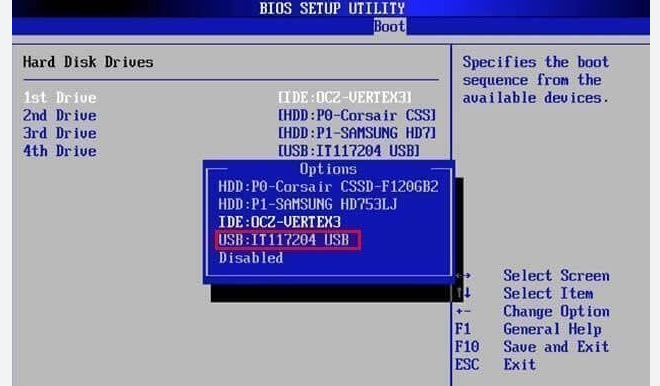
Check Boot Order: In the Boot section, ensure that the USB drive (the one with the Media Creation Tool) is set as the first boot device. If it's not listed, you may need to use the "Add Boot Option" or "Change Boot Order" options available in the BIOS to move the USB drive to the top of the list.
Save and Exit: After adjusting the boot order, save the changes and exit the BIOS. Usually, you can do this by pressing F10 and then Enter.
Check USB Drive on Another Computer: Plug the USB drive with the Media Creation Tool into another computer. If it works correctly on the other computer, the issue may be with your original computer's USB ports or settings.
Re - format the USB Drive: If the USB drive is not recognized or seems to be malfunctioning, you can re - format it. However, note that this will erase all data on the drive.
Connect the USB drive to your computer.
Open "This PC" or "My Computer."
Right - click on the USB drive and select "Format."
In the format window, choose the appropriate file system (NTFS is recommended for Windows installation media).
Click "Start" to begin the formatting process.
Re - create the Installation Media: After formatting, download the Media Creation Tool again on a working computer and use it to create the Windows installation media on the USB drive. Make sure to follow the official Microsoft instructions carefully during this process.
Identify Your Motherboard Model: To update the BIOS, you first need to know the model of your motherboard. You can usually find this information in the computer's documentation or by using system information tools in Windows. For example, you can open the "System Information" utility (type "systeminfo" in the Windows search bar and select the relevant app).
Visit the Manufacturer's Website: Go to the website of your motherboard manufacturer. Look for a "Support" or "Downloads" section.
Find the Latest BIOS Version: Search for your motherboard model and download the latest BIOS version available. Make sure to follow the manufacturer's instructions carefully when updating the BIOS, as an incorrect update can cause serious problems with your computer.
Update the BIOS: The method of updating the BIOS varies depending on the motherboard manufacturer. Some motherboards allow you to update the BIOS through a built - in utility in the BIOS itself (usually called "BIOS Flashback" or something similar), while others may require you to use a Windows - based utility.
Enter the BIOS Setup: Restart your computer and enter the BIOS setup as described earlier.
Navigate to Secure Boot and UEFI Sections: In the BIOS, look for sections related to "Secure Boot" and "UEFI" settings. The exact location may vary depending on the BIOS version and motherboard manufacturer.
Disable Secure Boot (if necessary): If Secure Boot is enabled, it may prevent the Media Creation Tool from being recognized, especially if the USB drive is not properly signed. Try disabling Secure Boot. Note that disabling Secure Boot may reduce the security of your system, so only do this if you trust the source of your installation media.
Check UEFI Compatibility: Ensure that the UEFI settings are correctly configured. Some systems may have incorrect UEFI modes (e.g., Legacy mode instead of UEFI mode) that can cause issues with detecting the Media Creation Tool. If your system supports it, try switching between UEFI and Legacy modes to see if it resolves the problem.
Save and Exit: After making the necessary changes to Secure Boot and UEFI settings, save the changes and exit the BIOS.

