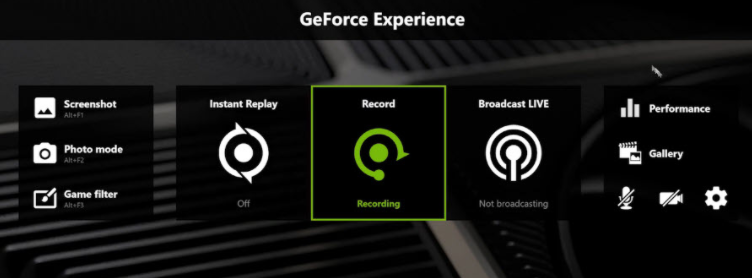
Ensure the in-game overlay is enabled in GeForce Experience:
Open GeForce Experience and click the top-right gear icon (settings).
Go to "General" and find "In-game overlay".
Toggle it on if disabled; if active, toggle off then on to reset.
A restart clears temporary files and resets system processes, resolving potential conflicts with the overlay. Close all apps and restart to refresh resources.
Outdated drivers often cause overlay issues. Update via:
Visit NVIDIA's download page.
Enter your GPU model (find in Device Manager > Display adapters).
Download and install the latest driver for your Windows version.
Open GeForce Experience and go to the "Drivers" tab.
Click "Download" and "Install" for available updates.
Third-party overlays (Discord, Spotify, OBS) may interfere:
Spotify: Disable "Show desktop overlay" in Settings > Display options, and turn off hardware acceleration in advanced settings.
Others: Close Discord (disable its overlay in Settings), OBS, or screen-capture tools. Test which app conflicts by re-enabling one at a time.
Windows updates fix software compatibility issues:
Open Settings (Windows + I) > "Update & Security".
Click "Check for updates" and install any available ones, then restart.
Grant admin rights to GeForce Experience:
Right-click its shortcut > "Run as administrator".
To set permanently: Right-click > Properties > Compatibility > Check "Run as administrator".
Corrupted packages disrupt functionality:
Uninstall all Visual C++ versions via Control Panel > Programs > Uninstall a program.
Reinstall from Microsoft's site (match your Windows bit version).
Set high performance for NVIDIA processes:
Go to Settings > System > Display > "Graphics settings".
Add "NVIDIA Share.exe" or "NVIDIA Overlay.exe" (found in C:\Program Files\NVIDIA Corporation\NVIDIA GeForce Experience).
Select the file, click "Options", and choose "High performance".
Clear corrupted settings:
Close GeForce Experience.
Press Windows + R, type %localappdata%\NVIDIA Corporation\NetService, and delete "settings.json".
Restart GeForce Experience to regenerate default settings.
If all else fails:
Uninstall via Settings > Apps > "NVIDIA GeForce Experience".
Delete leftover folders: C:\Program Files\NVIDIA Corporation\NVIDIA GeForce Experience and %localappdata%\NVIDIA Corporation\NetService.
Reinstall from NVIDIA's site, then re-enable the overlay.