

The cable connecting your monitor to your computer significantly impacts performance and compatibility. Here’s a streamlined overview of key types:
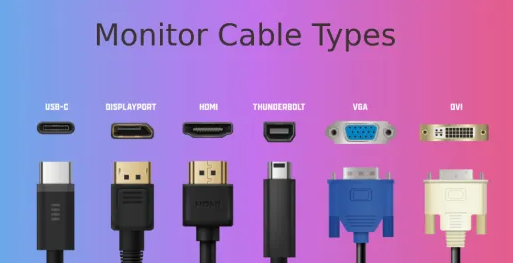
A ubiquitous choice for transmitting both audio and video via a single cable.
Key Traits: Digital signal for sharp visuals; multiple versions (e.g., HDMI 2.0 supports 4K@60Hz, 2.1 handles 8K@60Hz). Transmits high-quality audio, including surround sound.
Compatibility: Works with most modern monitors, laptops, consoles (PS5, Xbox Series X/S), and TVs. Backward-compatible but may limit new features.
Best For: Home entertainment (streaming to TVs) and gaming, especially with HDMI 2.1 for high refresh rates.
Favored for professional and gaming setups, offering robust performance.
Key Traits: High bandwidth supports 8K@60Hz (DP 1.4); Multi-Stream Transport (MST) enables daisy-chaining monitors. Transmits audio, though less used than HDMI for this.
Compatibility: Common on monitors, graphics cards, and some laptops. Less prevalent on TVs, but many monitors have both HDMI and DP.
Best For: Gamers (high refresh rates, VRR) and professionals (graphic design, video editing) needing precise visuals.
An older digital option still present in legacy systems.
Key Traits: Digital signal for sharp video but no audio. DVI-D (digital-only) and DVI-I (digital/analog) variants. Single-link maxes at 1920x1200; dual-link reaches 2560x1600.
Compatibility: Found on older monitors, graphics cards, and laptops. May require adapters for newer devices.
Best For: Connecting older systems or cost-sensitive office setups with basic display needs.
An outdated analog standard, now rare in modern setups.
Key Traits: Analog signal leads to potential fuzziness; limited to ~1920x1080. No audio support.
Compatibility: Present on very old monitors, projectors, and computers. Most new devices lack VGA ports, requiring adapters.
Best For: Legacy systems or older projectors with no digital inputs.
A versatile connector with multi-purpose functionality.
Key Traits: Transmits video (via DisplayPort Alt Mode), audio, data, and power. Some monitors offer Power Delivery to charge laptops. Compact design suits portables.
Compatibility: Common on modern laptops, tablets, and some monitors. Not all USB-C ports support video—check device specs.
Best For: Laptop-to-monitor setups (single-cable convenience) and portable monitors.
High-performance option for premium setups, co-developed by Intel and Apple.
Key Traits: Extreme bandwidth (40Gbps for Thunderbolt 4) supports high-res video and fast data transfer. Multi-protocol (DisplayPort, USB) and power delivery (up to 100W).
Compatibility: Found on high-end laptops, desktops, and external devices. Thunderbolt 3/4 use USB-C connectors, but not all USB-C ports support it.
Best For: Professional workstations (connecting storage, monitors, docks) and high-end gaming with multiple displays.
Older analog types, rarely used for computers.
Component: Three cables (RGB) for better analog video than composite. Used with older DVD players or consoles.
Composite: Single cable (yellow video, red/white audio) with low quality. For very old devices like VCRs.
Compatibility: Limited to aging monitors, TVs, and projectors.
Compatibility: Match ports on your devices; use adapters if needed. Check cable version support for resolutions/refresh rates.
Bandwidth: Ensure it handles your monitor’s resolution (e.g., 4K/8K) and refresh rate.
Audio/Power: Pick HDMI/DisplayPort for audio; USB-C/Thunderbolt for power delivery.
Future-Proofing: Invest in newer standards (HDMI 2.1, Thunderbolt 4) for long-term use.
Select based on your devices, resolution needs, and use case. HDMI and DisplayPort dominate modern setups, while USB-C/Thunderbolt offer versatility. Legacy cables work for older systems but lack modern features.

