

The mouse is a vital PC peripheral, shaping your computing experience by boosting productivity, comfort, and precision. With numerous types available, each with distinct features, choosing the right one for your needs is key. This guide breaks down mouse types, their pros and cons, and ideal uses to help you decide.
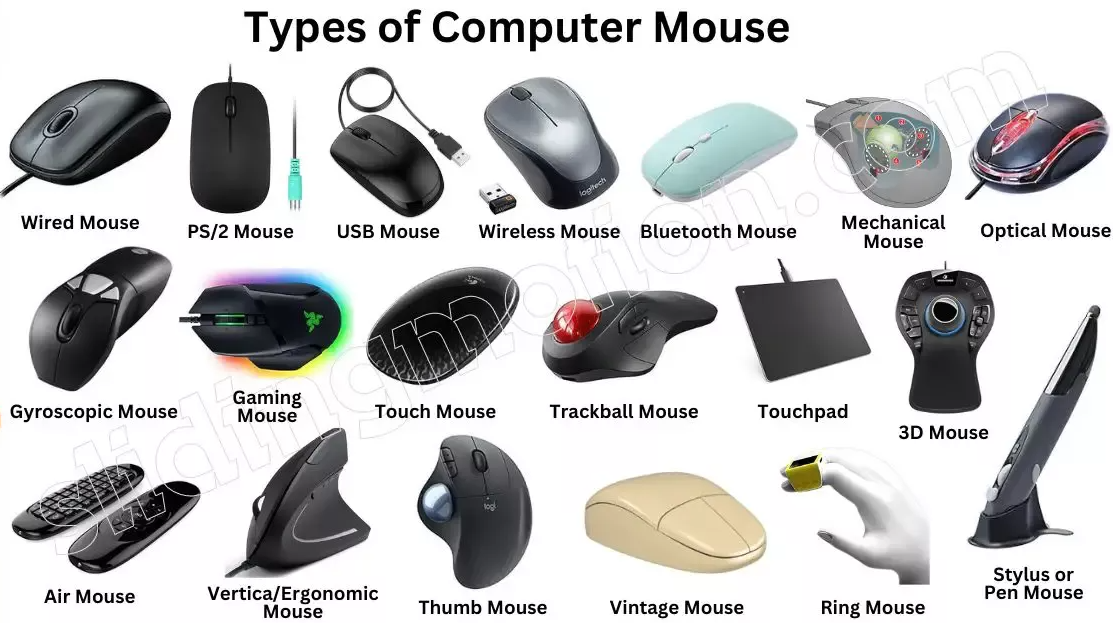
Douglas Engelbart invented the first mouse in the 1960s—a wooden device with wheels. Over time, it evolved: 1980s brought rubber ball mice; 1990s saw optical mice with LEDs; 2004 introduced laser mice for better precision. Today’s mice have wireless tech, customizable buttons, high-res sensors, ergonomic designs, and RGB lighting, catering to all users.
Common and affordable, optical mice use LEDs/infrared and sensors to track movement via reflected light. They offer good precision and work on various surfaces like desks and mouse pads.
Limitations: Struggle on reflective/transparent surfaces (e.g., glass) and may jitter on textured surfaces with low-quality sensors.
Top models: Logitech MX Master 3 (ergonomic, customizable, long battery), Microsoft Intellimouse (comfortable, precise), HP X4000b (wireless Bluetooth).
Popular for convenience, they connect via Bluetooth, RF, or Wi-Fi, freeing you from cables. They come in various designs, with rechargeable or AA/AAA batteries, and often have extra features.
Pros: Easy setup, clutter-free, great for laptops, portable. Cons: Signal interference, battery concerns, sometimes pricier than wired versions.
Notable models: Logitech G502 Lightspeed (gaming-focused, reliable wireless), Microsoft Bluetooth Mouse (affordable, comfortable), Apple Magic Mouse (sleek, gesture-controlled for Apple devices).
Built for gamers, they have advanced sensors, customizable buttons, ergonomic designs, and RGB lighting. High DPI settings enable quick, precise moves, and extra buttons can be programmed for in-game actions.
Ergonomics matter for long gaming sessions, with contoured shapes and adjustable weights. RGB lighting adds style.
Famous models: Logitech G Pro Wireless (lightweight, high-performance), Razer DeathAdder V2 (high-res sensor, durable), Corsair Dark Core RGB (wireless, customizable weights).
Unique with an exposed ball controlled by hand. They’re ergonomic, reducing wrist/arm strain—ideal for those with injuries. Precise but have a learning curve. The ball can attract dirt, and they’re slower for fast movements.
Top picks: Logitech MX Ergo (wireless, adjustable tilt), Kensington Expert Mouse (large ball, programmable buttons).
Common on laptops, with external options for desktops. They use finger gestures (scroll, zoom) and integrate well with OS. Less precise for tasks like design/gaming; can be uncomfortable with sweaty hands.
Laptop touchpads from Dell, HP, Lenovo, and Apple’s MacBooks are excellent. External: Logitech Wireless Touchpad T650.
Optical and wireless mice offer wired/wireless options. Wireless uses Bluetooth/RF/Wi-Fi; optical can be wired or wireless. Gaming, trackball, and touchpad mice are mostly wired, with some wireless exceptions.
Optical and gaming mice have top sensors—gaming mice with high DPI for pixel-perfect accuracy. Trackball mice are precise but less sensitive. Touchpads are suitable for daily use but less accurate.
Gaming and trackball mice are highly ergonomic—gaming with contoured shapes, trackball with stationary hands. Wireless/optical mice have moderate ergonomics. Touchpads lack focus here but offer flexible positioning.
Gaming mice lead with programmable buttons and RGB. Optical/wireless have some options; trackball/touchpad have few.
Gaming mice are premium. Optical/wireless are mid-range. Trackballs/touchpads are often affordable, with high-end exceptions.
Usage: Gamers need precision/customization; designers want accuracy; casual users can opt for basic optical/wireless.
Comfort: Fit hand size and grip style; ergonomic designs reduce fatigue.
Sensor: High DPI for gaming/design; lower DPI suffices for daily use.
Customization: Pick based on needed buttons/features.
Connectivity: Wireless for freedom, wired for stability.
Budget: Balance features with what you can spend.
The right mouse enhances your PC use. Consider your needs, comfort, precision, customization, connectivity, and budget to find the perfect fit—whether for gaming, work, or casual use.

