

Understanding the direction in which your PC fans blow is crucial for maintaining optimal airflow, keeping components cool, and preventing overheating. Whether you’re building a new PC, upgrading fans, or troubleshooting temperature issues, knowing how to determine fan direction can save you from costly mistakes. In this guide, we’ll break down simple methods to identify which way your PC fans push air—so you can set up your system for maximum efficiency.
Before diving into the "how," let’s quickly cover the "why." PC fans are designed to either intake (pull cool air into the case) or exhaust (push hot air out). Proper airflow depends on balancing these two: too many intakes can trap heat, while too many exhausts can create negative pressure, drawing in dust from unfiltered gaps.

If you’re unsure which direction a fan is blowing, use one of these easy methods.
The most straightforward way to determine airflow direction is by examining the fan blades. Manufacturers design blades to curve in a specific direction to push air efficiently, and this curve holds the key.
Exhaust direction: Look at the blades from the front (the side with the sticker or logo). If the blades curve downward (toward the edges of the fan) as they spin clockwise, the fan will push air away from you (exhaust).
Intake direction: If the blades curve upward (toward the center) as they spin clockwise, the fan will pull air toward you (intake).
Pro tip: Spin the blades gently with your finger (with the power off!) to visualize the curve—this makes the direction easier to spot.
Many modern PC fans (especially 120mm, 140mm, or CPU coolers) have small arrows molded into their plastic frames, directly indicating airflow direction. These arrows are usually near the corners or edges of the fan and are easy to miss at first glance.
One arrow points in the direction air flows (e.g., if it points to the right, air is pushed right).
A second arrow (sometimes) indicates the direction the blades spin (helpful for wiring, but less critical for airflow).
Check both sides of the fan—arrows might be printed on the frame’s edge or near the motor housing.
If visual cues aren’t clear, a quick hands-on test will settle it. This method works for installed fans or new ones you’re about to mount.
Unplug the fan (if it’s already in your PC) to avoid electrical risks.
Hold a lightweight piece of paper, tissue, or even a strand of hair near one side of the fan.
Plug the fan in briefly (or power it with a 4-pin Molex adapter) to spin it.
If the paper is pulled toward the fan, that side is the intake (air is being drawn in).
If the paper is pushed away, that side is the exhaust (air is being blown out).
Safety note: Never touch the fan blades while it’s running—they spin quickly and can cause injury.
Most fans have a sticker or label on one side, typically displaying the brand, model, or voltage. While not universal, this sticker often indicates the "front" of the fan—and thus the intake direction.
The side with the sticker is usually the intake side (air is pulled through this side and pushed out the opposite side).
Exceptions exist (e.g., some slim fans or specialty models), but this is a reliable rule of thumb for 90% of PC fans.
The location of the fan’s power connector (3-pin, 4-pin PWM, or Molex) can also hint at direction, though this is less consistent than other methods.
On many fans, the connector protrudes from the exhaust side. This is because manufacturers assume the fan will be mounted with the connector facing outward (for easier access), with air blowing away from the case.
However, this varies by brand, so use it as a secondary clue rather than a primary one.
CPU coolers (air coolers or AIO liquid coolers) have fans mounted on heatsinks or radiators, and their direction is critical for cooling the CPU. Here’s how to check:
For air coolers: The fan should blow air through the heatsink fins. If the fan is mounted on top of the heatsink, air flows from the fan’s intake side through the fins and out the other side.
For AIO radiators: The fan should pull cool air from the case (intake) through the radiator to dissipate heat, then push hot air out (exhaust) toward the case’s rear or top.
Once you’ve identified your fans’ directions, optimize your PC’s airflow with these best practices:
Front/bottom fans: Typically intakes, drawing in cool air from outside the case.
Rear/top fans: Usually exhausts, expelling hot air from around the CPU, GPU, and motherboard.
Balance is key: Aim for a slight positive pressure (more intakes than exhausts) to reduce dust buildup, or neutral pressure (equal intakes and exhausts) for steady airflow.
By using these methods, you’ll never second-guess your PC fan direction again. Proper airflow keeps your components running smoothly, extends their lifespan, and ensures your system stays cool even under heavy loads.
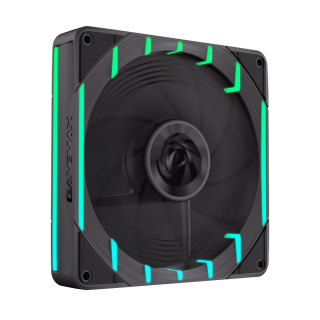
• Stunning ARGB Lighting:24 ARGB LEDs create a unique GAMEMAX claw mark effect. Supports motherboard - synchronized lighting adjustment, adding esports aesthetics to your PC case.
• Powerful Cooling:With PWM temperature control, it reaches a high speed of 2200RPM and provides a strong airflow of 66.89CFM, ensuring stable operation of the host under heavy loads.
• Silent & Noise - Reducing:The nine - bladed scythe - shaped fan blades, combined with optimized spacing, reduce turbulence, achieving over 20% noise reduction for quiet and efficient cooling.
• Long - lasting Durability:Upgraded 32.2MM magnetic ring, paired with a dust - proof hydraulic bearing, extends the lifespan by 10,000 hours, offering low - noise operation and anti - resonance performance.
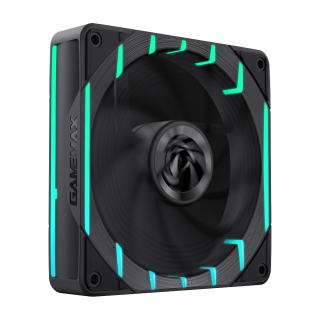
• Stunning ARGB Lighting:24 ARGB LEDs create a unique GAMEMAX claw mark effect. Supports motherboard - synchronized lighting adjustment, adding esports aesthetics to your PC case.
• Powerful Cooling:With PWM temperature control, it reaches a high speed of 2200RPM and provides a strong airflow of 66.89CFM, ensuring stable operation of the host under heavy loads.
• Silent & Noise - Reducing:The nine - bladed scythe - shaped fan blades, combined with optimized spacing, reduce turbulence, achieving over 20% noise reduction for quiet and efficient cooling.
• Long - lasting Durability:Upgraded 32.2MM magnetic ring, paired with a dust - proof hydraulic bearing, extends the lifespan by 10,000 hours, offering low - noise operation and anti - resonance performance.

