

Monitoring your CPU temperature is crucial for maintaining the health and performance of your computer. A CPU that runs too hot can lead to performance throttling, system instability, and even permanent hardware damage over time. Whether you’re a casual user or a tech enthusiast, knowing how to check your CPU temperature is an essential skill. In this article, we’ll guide you through various methods to check CPU temperature on different operating systems and devices.
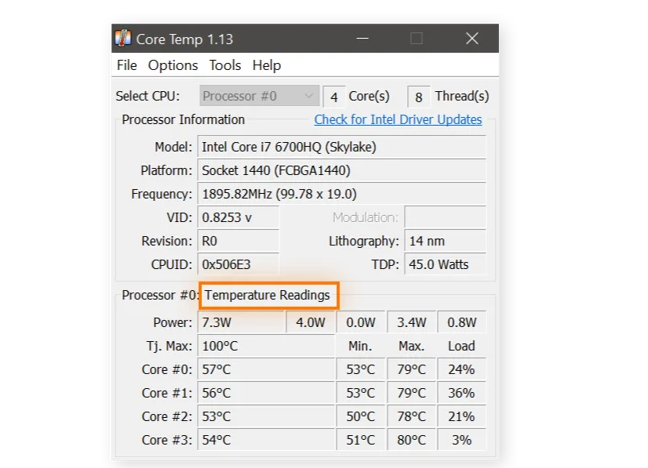
Windows doesn’t have a built-in tool that directly displays CPU temperature in a user-friendly way, but there are several reliable methods to get this information.
One of the most popular options is using third-party software. Tools like HWMonitor, Core Temp, and SpeedFan are widely used and trusted. HWMonitor, for example, provides detailed real-time data not only on CPU temperature but also on other components like the motherboard, GPU, and hard drives. It shows the current temperature, as well as the minimum and maximum temperatures recorded, giving you a comprehensive overview. Core Temp is another great choice, focusing specifically on the CPU. It displays the temperature of each core individually, which is useful for users who want to monitor the performance of each part of the CPU.
If you prefer not to install additional software, you can use the BIOS/UEFI. To access the BIOS/UEFI, restart your computer and press a specific key during the boot process (this key varies by manufacturer, but common ones are Del, F2, F1, or Esc). Once in the BIOS/UEFI, navigate through the menus (usually under a "Hardware Monitor" or similar section) to find the CPU temperature. Keep in mind that this method shows the temperature at boot time, not during active use, so it might not give you a complete picture of how the CPU behaves when you’re running resource-intensive tasks.
Mac users have a few straightforward ways to check CPU temperature.
Activity Monitor is a built-in tool, but it doesn’t directly display CPU temperature. However, you can use iStat Menus, a popular third-party app that adds a range of system monitoring tools to the menu bar, including CPU temperature. It provides real-time updates and allows you to customize the display to show the information you care about most.
Another option is Terminal commands, though this is more technical. Using commands like sudo powermetrics --samplers cpu_power | grep -i "CPU die temperature" can give you the current CPU temperature. This method is suitable for users who are comfortable with the command line.
Linux offers several tools for monitoring CPU temperature, both via the command line and graphical interfaces.
lm-sensors is a widely used command-line tool. To install it, you can use your distribution’s package manager (for example, sudo apt-get install lm-sensors on Ubuntu). After installation, run sudo sensors-detect to configure it, and then sensors to display the CPU temperature and other sensor data.
For a graphical interface, Psensor is a great choice. It provides a user-friendly dashboard that shows CPU temperature, as well as temperatures of other components, and can send alerts if temperatures exceed a certain threshold.
If you find that your CPU is running too hot, here are some effective ways to cool it down:
Clean the cooling system: Dust and debris can accumulate in the CPU fan and heatsink, reducing their cooling efficiency. Regularly clean these components with compressed air to remove dust.
Improve airflow in the case: Ensure that your computer case has proper ventilation. Make sure the case fans are working correctly and consider adding additional fans if necessary to promote better airflow.
Replace thermal paste: Over time, the thermal paste between the CPU and heatsink can dry out, reducing heat transfer. Replacing it with high-quality thermal paste can significantly improve cooling performance.
Use a better cooling solution: If you’re using a stock CPU cooler, upgrading to an aftermarket air cooler or a liquid cooling system can provide better cooling, especially for overclocked CPUs or high-performance systems.
Avoid overclocking: Overclocking increases CPU performance but also generates more heat. If your CPU is running hot, reverting to the default clock speed can help reduce temperatures.
Limit resource-intensive tasks: Running multiple heavy applications or games at the same time can cause the CPU to work harder and heat up. Close unnecessary programs to reduce the load on the CPU.
By regularly checking your CPU temperature and taking steps to keep it within a safe range, you can ensure that your computer runs smoothly and lasts longer.

