

The RTX 5080 delivers exceptional performance for gaming and computing, but its full potential relies on proper installation. This streamlined guide breaks down the process to help you install it smoothly and maximize its capabilities.
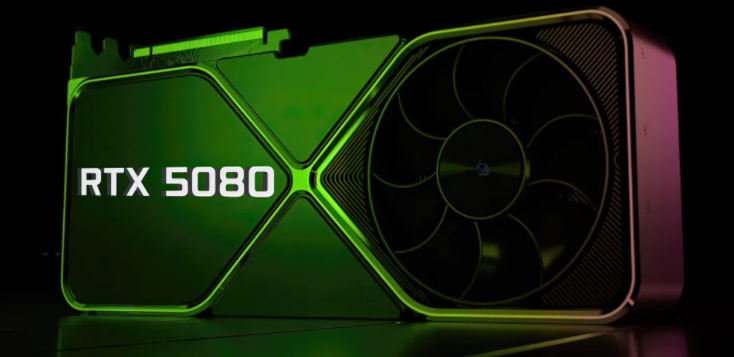
First, confirm your PC can accommodate the RTX 5080. Measure your case’s internal space to ensure the card fits. For power, use an 850W+ power supply with the required 8 - pin or 6 + 2 - pin connectors—insufficient power or mismatched connectors will cause performance issues.
Gather a magnetic Phillips screwdriver (to avoid lost screws) and an anti - static wristband (to protect components from static damage). Work on a clean, flat surface, and back up critical data to prevent loss from unexpected issues like power outages.
Shut down your PC and unplug the power cord. Remove the case’s side panel (screws or clips, depending on the model) to expose internal components.
Unplug power connectors from the old card. Press the PCI - E slot’s release clip, then gently pull the card out. Avoid force to prevent damaging the slot.
Hold the RTX 5080 by its edges (avoid touching components). Align its gold fingers with the PCI - E slot and insert firmly—you’ll hear a “click” when seated correctly. Secure the card to the case with screws to prevent movement.
Plug the power supply’s 8 - pin or 6 + 2 - pin cables into the RTX 5080’s power ports. Ensure a tight fit to avoid loose connections that could disrupt performance.
Replace the side panel and secure it. Plug the power cord back in.
Download the latest NVIDIA drivers from the official website. Run the installer and choose “Express Installation” for automatic setup. Restart your PC after installation—outdated drivers will limit the card’s performance.
Use tools like 3DMark to run benchmark tests and compare results to reference scores. For real - world validation, launch 3D games to check frame rates and visual quality—consistent performance confirms a successful install.
Open the NVIDIA Control Panel to adjust settings:
Set resolution and refresh rate to match your monitor.
Tweak 3D settings (e.g., anti - aliasing, texture filtering) for a balance of quality and speed.
Enable ray tracing and DLSS in supported games to boost visuals and frame rates.
Static Protection: Always use an anti - static wristband when handling the card; avoid working on carpets.
Dust Management: Clean the card’s fan and radiator monthly with a soft brush or air blower—dust blocks airflow and raises temperatures.
Temperature Monitoring: Use HWMonitor to track temps; keep them below 85°C. Add case fans or upgrade cooling if overheating occurs.
Avoid Unsafe Overclocking: Overclocking increases power use and heat. Only attempt it with professional guidance to prevent damage.
By following these steps, you’ll install the RTX 5080 correctly and unlock its full performance. Enjoy smoother gameplay, faster rendering, and reliable performance for all your tasks.

