

Lenovo laptops often have a keyboard light, useful in low - light environments. Here are simple ways to control it.

This is the fastest method for most models:
Find the key with a backlight icon (like a lightbulb or lit keyboard) in the F - key row (usually F7 or F8).
Press Fn + this backlight key to toggle the light on/off.
If the key has +/ - symbols, use Fn + + to increase brightness or Fn + - to decrease it.
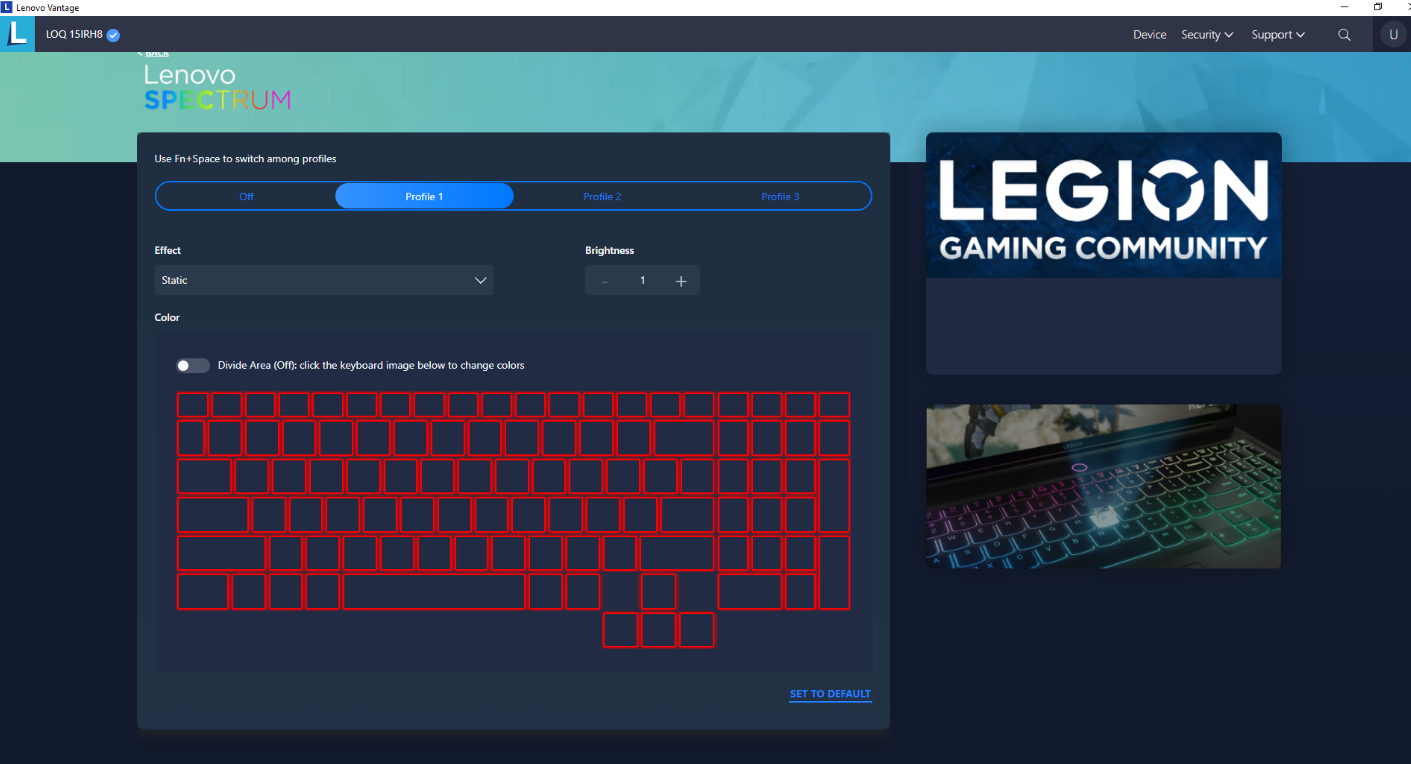
For more customization:
Legion Zone (Legion series):
Open the app (find it in Start Menu).
Go to the “Lighting” tab to turn the light on/off, adjust brightness, or set effects (breathing, static, etc.).
Lenovo Vantage (consumer/business models):
Install from Microsoft Store if missing, then open it.
Go to “Hardware Settings” and find the keyboard/lighting option to toggle the light or adjust brightness.

Advanced method (use cautiously):
Restart the laptop and press F2, Del, or Esc quickly to enter BIOS (check startup prompts for the exact key).
Use arrow keys to find “Keyboard” or “System Configuration”. Look for “Keyboard Backlight” and press Enter to enable/disable it.
Press F10 to save and exit. The laptop will restart with the new setting. (Note: BIOS only allows on/off, no brightness/effects adjustments.)
If these methods don't work, check for hardware/driver issues. Refer to Lenovo's official support docs for your model or contact their customer support.

