

The polling rate of a mouse determines how frequently it sends data to your computer, measured in Hertz (Hz). A higher polling rate (e.g., 1000Hz) offers smoother tracking and lower input lag, ideal for gaming and precision tasks, while a lower rate (e.g., 125Hz) conserves system resources. Here’s how to adjust it effectively:
What It Is: Polling rate defines how often your mouse updates its position (e.g., 1000Hz = 1000 updates/second). Higher rates reduce latency but may increase CPU usage .
Why Adjust It: Gamers benefit from 1000Hz for responsiveness, while casual users might prefer 125–500Hz to balance performance and resource usage .
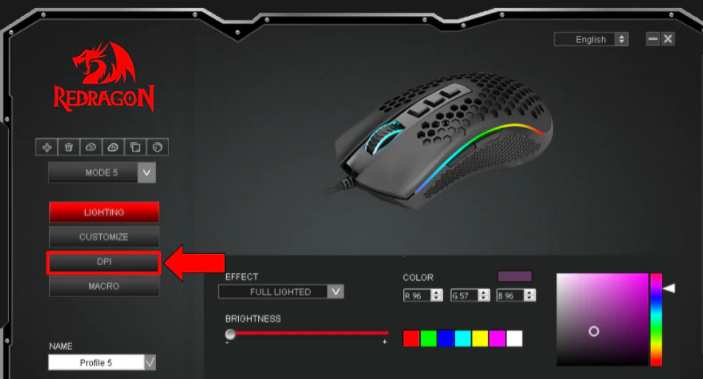
Most gaming mice require manufacturer software for adjustments. Here’s how to do it for popular brands:
Logitech (G Hub):
Tip: Higher rates like 1000Hz are recommended for gaming, but older CPUs may experience increased load .
Download and install Logitech G Hub.
Connect your mouse and select it in the app.
Navigate to Sensitivity (DPI) and adjust the Report Rate (polling rate) from 125Hz to 1000Hz .
Razer (Synapse 3):
Install Razer Synapse 3.
Select your mouse and go to Performance.
Choose the polling rate from the dropdown menu (125Hz, 500Hz, 1000Hz) .
SteelSeries (Engine):
Download SteelSeries Engine.
Select your mouse and click Performance.
Adjust the polling rate slider to your desired value .
Corsair (iCUE):
Install Corsair iCUE.
Go to Devices > Mouse Settings > Polling Rate .
HyperX (NGenuity):
Use HyperX NGenuity.
Create a profile and adjust polling rate under Performance .
Some mice allow direct polling rate changes via buttons or keyboard shortcuts:
Dedicated Buttons: High-end models (e.g., Razer Viper, Logitech G Pro X Superlight) often have a button on the bottom. Pressing it cycles through predefined rates .
Keyboard Shortcuts: Plug in your mouse while holding specific keys (e.g., DPI button + wheel) to toggle rates. Check your mouse manual for details .
For mice without official software support:
USB Overdrive (Mac): Adjust polling rates and button mappings for non-Apple mice .
SteerMouse (Mac): Similar to USB Overdrive, offering granular control over tracking and polling .
Windows Tools: Use Mouse Rate Checker to monitor and adjust rates, though hardware limitations may apply .
Manufacturer Software: Use Logitech Options or Razer Synapse for macOS if supported .
Terminal Command: Adjust tracking speed (not direct polling rate) with:sudo defaults write .globalpreferences com.apple.mouse.scaling -float X
Replace X with 0 (slow) to 3 (fast) .
Online Checkers: Visit cps-check.com/polling-rate-check to test your current rate by moving the mouse .
Software Tools: Use Mouse Rate Checker for real-time monitoring and historical data analysis .
CPU Impact: Higher rates (1000Hz) may strain older CPUs, causing lag. Lower to 500Hz if needed .
Battery Life: Wireless mice at 1000Hz drain batteries faster. Opt for 500Hz for longer sessions .
Sensor Compatibility: Ensure your mouse sensor supports the desired rate. Budget models may top out at 500Hz .
Unresponsive Software: Restart the app or update drivers.
Hardware Issues: Reset the mouse via its physical button or reconnect it.
CPU Overload: Close background apps or lower the polling rate if Task Manager shows high usage .
Gamers: Stick to 1000Hz for competitive play.
Casual Use: 125–500Hz balances smoothness and efficiency.
Testing: Experiment with different rates to find your comfort zone.
By adjusting your mouse’s polling rate, you can optimize performance for gaming, work, or everyday use. Always verify changes with a checker tool and monitor system resources to ensure stability.

