

Customizing the RGB lighting on your ASUS ROG keyboard is a great way to personalize your gaming setup and enhance your immersive experience. Whether you prefer a subtle static color or dynamic effects like rainbow waves, ASUS provides intuitive tools to achieve the perfect look. Below is a detailed guide to help you adjust your keyboard’s lighting with ease.
Most ASUS ROG keyboards rely on Armoury Crate, ASUS’s official software suite, to control lighting and other advanced features. This software integrates Aura Sync, a technology that allows synchronization of RGB effects across compatible devices (e.g., mice, headsets, and motherboards).
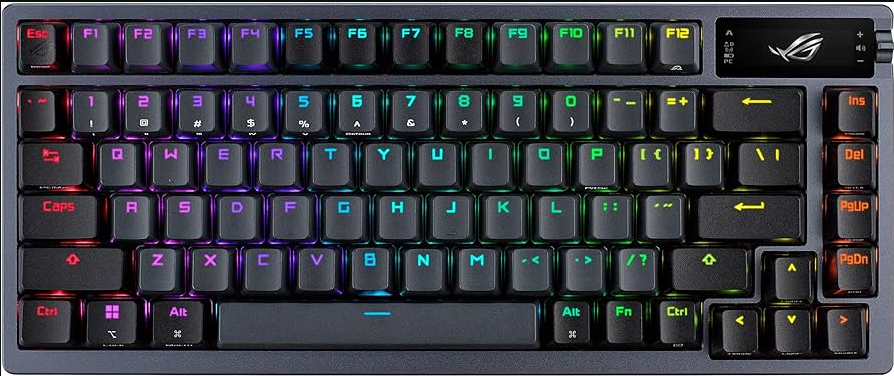
Installation:
Ensure your keyboard’s drivers are up-to-date. Download the latest version of Armoury Crate from the ASUS Support website.
If prompted, install Aura Sync as part of the setup. Note that Aura Sync is now typically included within Armoury Crate, but standalone versions may still be available for older models.
Once installed, follow these steps to change your keyboard’s color:
Launch Armoury Crate:
Open the app from your desktop or taskbar. Your keyboard should appear under "Devices."
Access Lighting Settings:
Click on your keyboard’s icon to enter its control panel.
Navigate to the Lighting or Aura Sync tab. Here, you’ll find options for effects, colors, and brightness.
Select a Lighting Mode:
Static Color: Choose a single color from the color wheel or input RGB values for precision.
Breathing: Create a pulsing effect with adjustable speed and intensity.
Wave: Simulate a ripple effect that flows across the keyboard.
Rainbow: Cycle through a spectrum of colors continuously.
Custom Zones: Some models (e.g., ROG Claymore Core) allow you to assign different colors to specific key groups.
Adjust Brightness and Speed:
Use sliders to fine-tune brightness or the speed of dynamic effects.
Preview changes in real-time before clicking Apply or Save.
For on-the-fly changes, many ROG keyboards offer dedicated hardware controls:
Cycle Lighting Modes:
Press Fn + F4 or Fn + F5 (depending on your model) to switch between static, breathing, and wave effects.
Adjust Brightness:
Use Fn + ↑/↓ to increase or decrease brightness.
Change Color:
Press Fn + ←/→ to cycle through preset colors, or Fn + Ins to access advanced color menus.
Disable Lighting:
Press Fn + F3 to turn off the backlight entirely.
Note: Shortcuts vary by model. Refer to your keyboard’s manual or ASUS support for exact combinations.
To create a cohesive gaming setup, synchronize your keyboard’s lighting with other ASUS ROG peripherals:
Enable Aura Sync:
In Armoury Crate, navigate to Aura Sync and select Sync Devices.
Check the boxes next to your keyboard, mouse, and other compatible devices.
Choose a unified effect (e.g., "Rainbow" or "Strobe") to apply across all devices.
Customize Per-Device Settings:
For granular control, adjust each device’s lighting individually within the same menu.
Save profiles to switch between synchronized setups with one click.
If you encounter problems, try these solutions:
Software Not Detecting Keyboard:
Restart your computer and ensure Armoury Crate is running as an administrator.
Reinstall the keyboard drivers via Device Manager.
Unresponsive Lighting:
Update your keyboard’s firmware through Armoury Crate.
Reset the keyboard by unplugging it for 30 seconds and reconnecting.
Color Mismatches:
Verify that all devices are using the latest Aura Sync firmware.
Clear conflicting profiles in Armoury Crate’s settings.
Dynamic Effects:
Use Armoury Crate’s Custom Mode to design unique animations, such as reactive lighting that changes with in-game actions (e.g., health status or kills).
Individual Key Control:
Select specific keys to assign distinct colors or effects. This is ideal for highlighting WASD or macro keys.
Themed Lighting:
Match your keyboard’s color to your favorite game or team. For example, red for Valorant or blue for League of Legends.
Changing the color of your ASUS ROG keyboard is a straightforward process with Armoury Crate and Aura Sync. Whether you prefer simplicity or elaborate effects, these tools empower you to create a visually stunning setup. Experiment with different modes, sync your devices, and let your keyboard reflect your gaming style. For further assistance, consult ASUS’s official documentation or support channels. Happy gaming!

