

BIOS, the basic input/output system on a computer motherboard, is crucial to the overall performance and stability of the computer. Regularly updating the BIOS of a Gigabyte motherboard can not only improve hardware compatibility but also potentially optimize system performance and fix potential vulnerabilities. Below is a detailed guide on the common methods and key precautions for updating the BIOS of a Gigabyte motherboard.
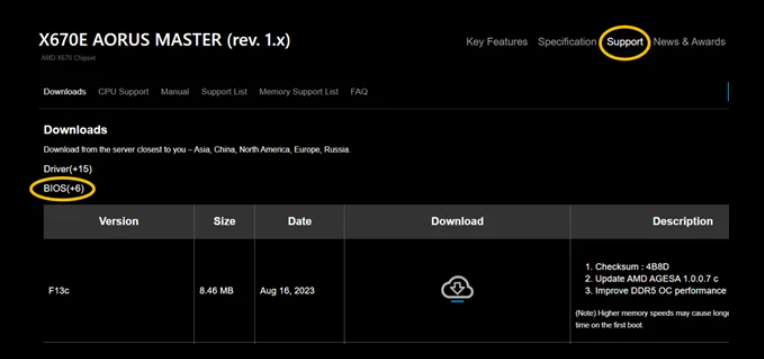
Confirm the motherboard model: Before starting the update, make sure you accurately know your Gigabyte motherboard model. You can check the label on the motherboard surface or use hardware detection tools (such as CPU-Z) in the operating system to obtain it.
Download the corresponding BIOS file: Visit the official Gigabyte website, enter your motherboard model in the "Support & Downloads" section to search, find the latest version of the BIOS file and download it. Note that you should select the file format compatible with your operating system, which is usually in a compressed package. After downloading, you need to decompress it.
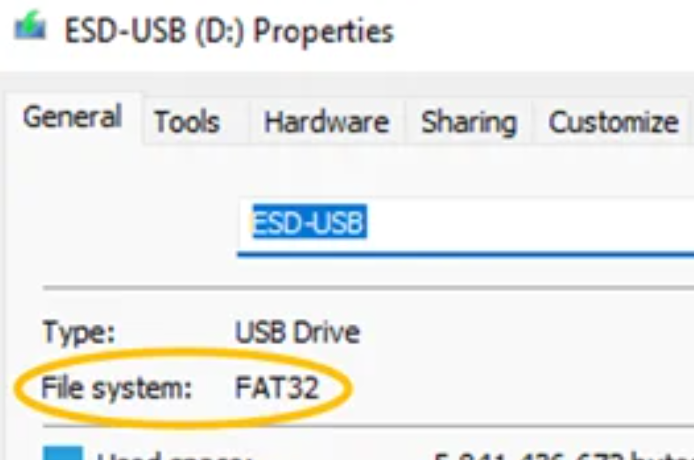
Prepare storage media: Prepare an empty USB drive and format it to FAT32. This is because most motherboard BIOS update tools only support storage media in FAT32 format to ensure smooth reading of the BIOS file.
Enter Q-Flash mode: Insert the USB drive containing the BIOS file into the USB port of the motherboard (it is recommended to choose the USB port at the rear of the motherboard for better stability). Restart the computer, and during the boot process, continuously press the "End" key (different motherboard models may use different keys; please refer to the motherboard manual for details) to enter the Q-Flash tool interface.
Select the BIOS file: In the Q-Flash interface, use the arrow keys to find the USB drive where you stored the BIOS file, select the BIOS file you downloaded and decompressed earlier, and press the Enter key to confirm.
Start the update process: After confirming that the selected file is correct, select the "Update BIOS" option according to the on-screen prompts, and the tool will automatically start the update process. During this period, never turn off the computer power, plug or unplug the USB drive, or perform other operations, otherwise, it may cause BIOS damage and make the motherboard unable to start.
Complete the update and restart: After the update is completed, the computer will restart automatically. After restarting, the BIOS update will take effect.
Install the @BIOS tool: Download and install the @BIOS tool suitable for your motherboard model from the official Gigabyte website. Follow the prompts during the installation process.
Run the tool and connect to the network: Open the installed @BIOS tool and ensure the computer is connected to the Internet. The tool will automatically detect your motherboard model and display the current BIOS version and the latest version information.
Update BIOS online: Click the "Online Update" or similar option in the tool, and the tool will automatically download the latest BIOS file and complete the update. Similarly, during the update process, ensure the computer power supply is stable to avoid interruption.
Avoid power failure midway: This is the most important point in the BIOS update process. No matter which method is used, the computer must be continuously powered during the update. You can consider connecting an uninterruptible power supply (UPS) to prevent accidental power failure.
Do not update randomly: If your computer is running stably currently and there are no hardware compatibility issues or other abnormalities, it is not recommended to update the BIOS frequently. Blind updates may bring unnecessary risks.
Strictly match the model: When downloading the BIOS file, it must strictly correspond to your motherboard model. BIOS files of different models cannot be mixed, otherwise, it is very easy to cause motherboard failures.
Record original settings: Some BIOS updates may reset the original settings of the motherboard. Therefore, before updating, it is recommended to record the special settings you made in the BIOS for reconfiguration after the update.
Through the above steps, you can safely and smoothly complete the BIOS update of your Gigabyte motherboard. If you encounter problems during the update, it is recommended to consult the motherboard manual or contact Gigabyte's official technical support for help.

