

It’s a confusing scenario: your PC won’t boot up, but you notice the motherboard has power—maybe the LED lights are on, or you hear a faint click when pressing the power button. This indicates the power supply is sending electricity to the motherboard, but something is blocking the system from fully starting. Let’s break down the most likely causes and how to fix them.
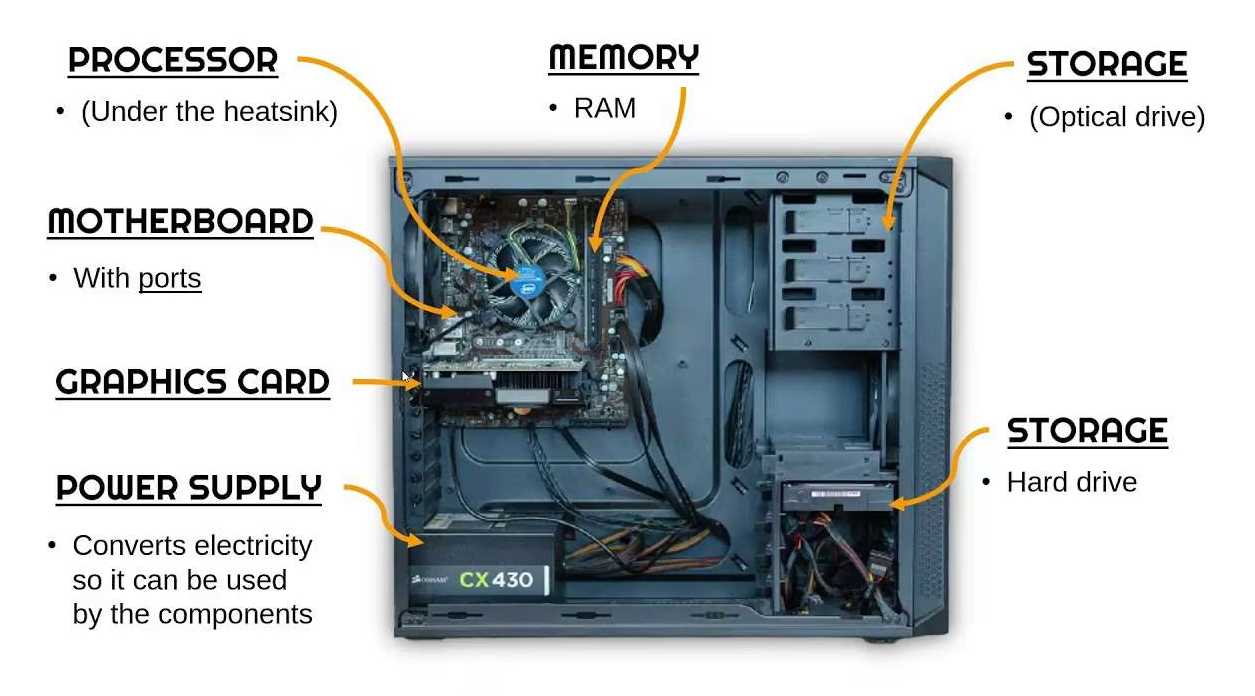
When the motherboard has power but the PC won’t turn on, the issue typically lies in one of these areas:
A failed connection between the power button and motherboard.
Faulty or incompatible hardware (RAM, GPU, CPU).
A damaged motherboard component (e.g., capacitors, power delivery circuits).
BIOS/UEFI errors preventing boot.
The power button relies on a small cable (often labeled “PWR SW”) connected to the motherboard’s front panel headers. A loose or disconnected cable is a common culprit:
Open the PC case (for desktops) and locate the front panel connectors on the motherboard. Refer to your motherboard manual to identify the “PWR SW” (power switch) pins—they’re usually near the bottom edge, labeled with abbreviations like “FP” (front panel).
Inspect the PWR SW cable: Ensure it’s firmly plugged into the correct pins. If it’s loose, reconnect it. If the cable is damaged (e.g., frayed wires), you can temporarily bridge the pins with a screwdriver (gently touch both pins for 1–2 seconds) to test if the PC turns on. This confirms a faulty power button or cable.
Check other front panel cables: Accidentally swapping cables (e.g., “Reset SW” with “PWR SW”) can prevent booting. Verify all connectors match the manual’s diagram.
A faulty component (RAM, GPU, or storage drive) can cause the motherboard to receive power but fail to boot. Strip down the system to its essentials to isolate the issue:
Power off the PC and unplug the power cord.
Remove non-essential hardware:
Disconnect all USB devices, external drives, and expansion cards (e.g., sound cards, Wi-Fi adapters).
For desktops: Remove the graphics card (if using a dedicated GPU) and connect your monitor to the motherboard’s integrated video port (if available).
Unplug SATA data/power cables from storage drives (SSD/HDD).
Leave only critical components: Keep the CPU, one stick of RAM, and the 24-pin + 4/8-pin motherboard power connectors connected.
Try turning on the PC: If it boots (even to a “no boot device” error), the problem is with one of the removed components. Reconnect them one by one to identify the faulty part.
RAM is highly sensitive—even a single faulty stick can halt the boot process, even if the motherboard has power:
Reseat the RAM: Remove all RAM sticks, then reinsert one at a time (using the correct slots—check the manual for dual-channel configurations, often labeled A2/B2). Push firmly until the clips lock into place.
Test with known-good RAM: If you have spare RAM (matching the motherboard’s specs), swap it in. If the PC boots, your original RAM is faulty.
Check for bent pins: On motherboards with DDR4/DDR5 slots, bent RAM slot pins can block contact. Inspect slots carefully under a light—use a plastic tool (e.g., a credit card edge) to gently straighten bent pins if needed (proceed with caution to avoid damage).
A loose CPU or overheating due to a faulty cooler can prevent the system from booting, even with motherboard power:
Check CPU installation: Ensure the CPU is seated correctly in the socket. For desktops with a socketed CPU (e.g., Intel LGA, AMD AM4/AM5), verify the retention lever is locked and the CPU isn’t misaligned (this can damage pins).
Test the CPU cooler: A failed cooler (e.g., dead fan, dried thermal paste) causes the CPU to overheat instantly, triggering a shutdown. Power the PC on and listen for the cooler fan—if it doesn’t spin, replace the fan or reapply thermal paste (if the fan works but the CPU overheats).
Check for CPU damage: Inspect the CPU for bent pins (on AMD CPUs) or burn marks. Damaged CPUs require replacement.
Even with power, a damaged motherboard component can block booting:
Look for burnt or swollen capacitors: These cylindrical components on the motherboard should be flat and unblemished. Bulging, leaking, or discolored capacitors indicate failure—common in older motherboards or those exposed to power surges.
Check for liquid or corrosion: Spilled liquids (coffee, water) can short-circuit motherboard traces. Look for greenish corrosion or sticky residues—clean gently with isopropyl alcohol and a soft brush if minor, but severe damage may require replacement.
Inspect the power delivery area: Components near the CPU (VRM heatsinks, inductors) can fail due to overheating. Burnt marks or a strong odor here signal a faulty VRM, which often requires professional repair.
A corrupted BIOS/UEFI (the firmware that initializes hardware) can prevent booting, even with motherboard power. Resetting it often resolves software-related glitches:
Power off the PC and unplug the power cord.
Remove the CMOS battery: This small, coin-shaped battery (typically CR2032) is on the motherboard. Wait 5–10 minutes to drain residual power, then reinsert it.
Use the CMOS reset jumper: Many motherboards have a 3-pin jumper (labeled “CMOS” or “CLRTC”). Move the jumper from pins 1-2 to 2-3 for 10 seconds, then return it to 1-2.
Power on the PC: The BIOS will reset to default settings. If the PC boots, reconfigure BIOS settings (e.g., boot order) as needed.
A partially failed power supply can deliver enough power to light the motherboard’s LEDs but not enough to boot the system. This is common with aging PSUs:
Use a multimeter: Test the PSU’s 24-pin connector for stable voltages (e.g., 3.3V, 5V, 12V). Fluctuating or low readings indicate a faulty PSU.
Swap with a known-good PSU: Borrow a compatible PSU (matching wattage and connector types) and install it. If the PC boots, your original PSU is faulty—even if it powers the motherboard’s LEDs.
A short circuit (e.g., a loose screw touching the motherboard, or a damaged cable) can cause the system to shut down immediately after powering on, mimicking a “no boot” issue:
Inspect the case interior: Look for loose screws, metal debris, or cables touching exposed motherboard components (e.g., backplate, capacitors).
Test the motherboard outside the case: Place the motherboard on a non-conductive surface (e.g., a wooden table or anti-static mat) and connect only essential components (CPU, RAM, PSU). If it boots here, the case is causing a short (e.g., a bent standoff).
If all troubleshooting fails, the motherboard itself may be faulty. Signs include:
No response after resetting BIOS and testing with known-good components.
Visible damage (burnt VRMs, broken traces) that can’t be repaired.
Inability to detect critical hardware (CPU, RAM) even when properly installed.
Use anti-static precautions: Wear an anti-static wristband when handling internal components to avoid damaging the motherboard.
Update BIOS: If the PC boots after troubleshooting, update the BIOS to the latest version to fix bugs that may cause boot issues.
Prevent future problems: Use a surge protector to shield against voltage spikes, and clean dust from the motherboard regularly to prevent overheating.
A PC with a powered motherboard but no boot is frustrating, but it’s rarely a hopeless case. By methodically checking connections, testing hardware, and inspecting for damage, you can often pinpoint the issue and get your system running again. If you’re unsure about handling components, a certified technician can help diagnose and repair the problem.

