

When it comes to optimizing your Windows - based computer's performance, understanding the speed of your Random Access Memory (RAM) is crucial. Here are several reliable methods to check your RAM speed on Windows operating systems.
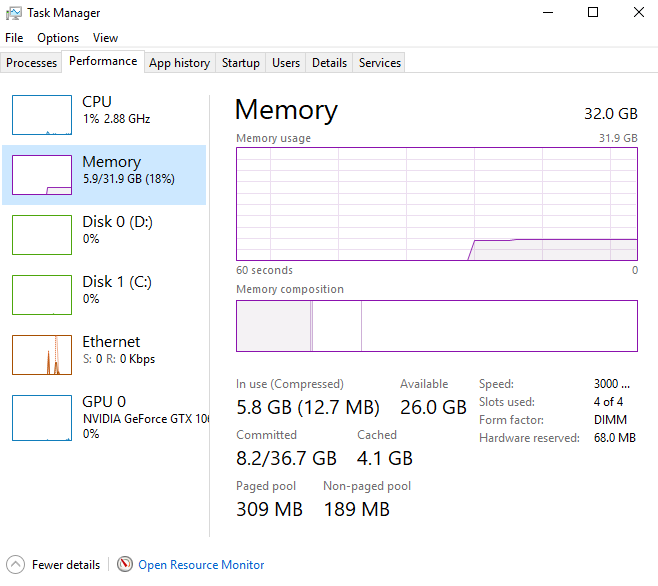
Using Task Manager
Task Manager is a handy utility built into Windows that offers real - time insights into various system processes and performance metrics, including RAM speed.
Step - by - step process:
First, press the Ctrl + Shift + Esc keys simultaneously. This keyboard shortcut will instantly open the Task Manager. If you prefer using the mouse, you can right - click on the taskbar and select "Task Manager" from the context menu.
Once the Task Manager window appears, navigate to the "Performance" tab. This tab provides an overview of your computer's hardware performance, such as CPU usage, GPU activity, and, of course, memory details.
On the left - hand side of the "Performance" tab, click on "Memory". As soon as you do this, the right - hand side of the window will populate with detailed information about your system's memory. Look for the "Speed" section, where you'll find the current speed of your RAM, usually expressed in megahertz (MHz). For example, it might display "2666 MHz", indicating the speed at which your RAM is operating.
Note: The speed shown in Task Manager represents the speed at which the RAM is currently running. If your system has multiple RAM modules, it will show the speed of the module with the lowest speed, as the system typically runs all modules at the speed of the slowest one for compatibility reasons.

