

If you’re upgrading components, troubleshooting hardware issues, or simply curious about your computer’s internals, knowing your motherboard model is often essential. The motherboard is the backbone of your system, connecting all hardware components, so identifying it can help with compatibility checks, driver updates, and more. Here’s a detailed guide on how to check what motherboard you have using various methods.
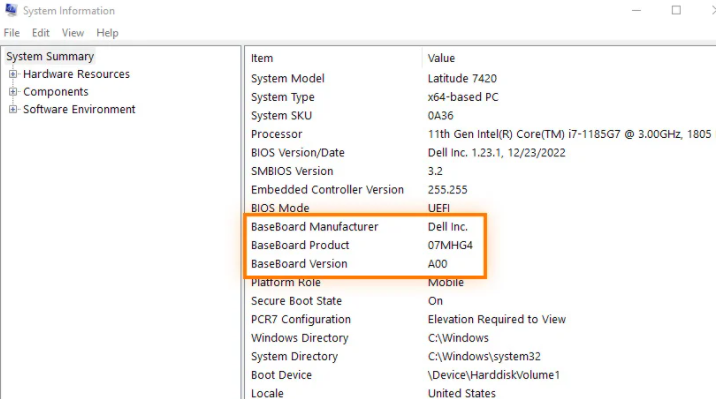
Windows has a built-in tool called System Information that provides detailed hardware and software specs, including your motherboard model.
Press Win + R to open the Run dialog box.
Type msinfo32 and hit Enter. This launches the System Information window.
In the left pane, navigate to System Summary.
Look for entries like Baseboard Manufacturer (the brand) and Baseboard Product (the model number) in the right pane. These two fields will give you your motherboard’s make and model.
Note: If the fields are blank, try Method 2 or 3, as some systems may not populate this data.
For a quicker text-based approach, you can use Command Prompt or PowerShell to retrieve motherboard information.
Open Command Prompt (press Win + X and select “Command Prompt”) or PowerShell.
Type the following command and press Enter:
wmic baseboard get product,manufacturer,version,serialnumber
This will display results for Manufacturer (e.g., ASUS, MSI), Product (the model name), Version, and Serial Number. The “Product” field is your motherboard model.
This method is reliable and works on most Windows versions, including Windows 10 and 11.
If you prefer a user-friendly interface with more detailed hardware insights, third-party tools are excellent options.
CPU-Z: A popular free tool that shows comprehensive system info. Download and run it, then go to the Mainboard tab. Here, you’ll see the Manufacturer and Model of your motherboard clearly listed.
Speccy: Another free tool by Piriform (makers of CCleaner). Launch Speccy, and under the Motherboard section, you’ll find the model, manufacturer, and other details like chipset and BIOS version.
These tools are especially useful if built-in methods fail to display the information.
If you’re comfortable opening your desktop case, you can find the motherboard model printed directly on the board.
Power off your PC and unplug it from the wall.
Open the case (usually by removing screws from the back or side panel).
Look for a label or printed text on the motherboard itself. The model number is often near the CPU socket, RAM slots, or PCIe slots. It may start with a brand abbreviation (e.g., “Z690” for Intel, “B550” for AMD) followed by a specific model name.
Warning: Only attempt this if you’re familiar with handling computer hardware. Avoid touching components to prevent static damage.
Upgrades: Ensures compatibility with new CPUs, RAM, or graphics cards (e.g., an AMD B550 motherboard supports Ryzen 5000 series CPUs).
Drivers: Helps find the correct chipset, LAN, or audio drivers from the manufacturer’s website.
Troubleshooting: Aids in diagnosing issues like BIOS errors or hardware conflicts.
By using one of these methods, you can easily identify your motherboard model, whether you’re a casual user or a PC enthusiast. Choose the approach that works best for your comfort level—built-in tools for simplicity, third-party software for detail, or physical inspection for desktops.

