

In the dynamic world of laptops, there are times when locking the keyboard becomes essential. Whether you're in the middle of a presentation and want to prevent accidental key presses, or you're cleaning the keyboard and need to keep it from registering inputs, knowing how to lock and unlock your laptop's keyboard can be a real lifesaver. In this comprehensive guide, we'll explore various methods to achieve this on different operating systems and laptop models.
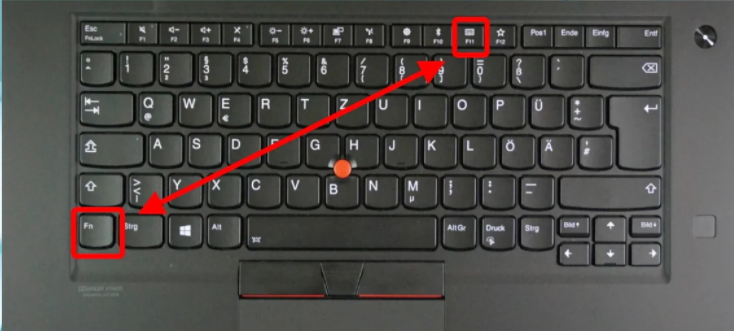
Fn + NumLK/ScrLk: Many Windows laptops allow you to lock the numeric keypad (if available) by pressing the Fn key in combination with the NumLK (Numeric Lock) or ScrLk (Scroll Lock) key. This can be useful when you don't want to accidentally enter numbers while typing. For example, on Dell laptops, you might find the NumLK key on the F11 or F12 key, and pressing Fn + NumLK will toggle the numeric keypad lock.
Windows Key + L: This combination is not a traditional keyboard lock but locks the entire computer. It's a quick way to secure your laptop when you step away. All keyboard inputs are disabled until you enter your login credentials to unlock the computer.
Mac laptops don't have a direct keyboard lock shortcut like Windows. However, you can use the "Screen Lock" feature. Pressing Control + Shift + Power button (or Control + Shift + Eject on older models) will lock the screen, effectively disabling the keyboard. To unlock, simply enter your Mac password.
Filter Keys: In Windows, you can use the Filter Keys feature to lock the keyboard. Press the Shift key for 8 seconds to bring up the Filter Keys prompt. Click "Yes" to enable Filter Keys, which will lock the keyboard. To unlock, press the Shift key for 8 seconds again. You can also access Filter Keys settings through the Control Panel. Navigate to "Ease of Access" > "Change how your keyboard works" and check the box for "Turn on Filter Keys" to lock the keyboard. Uncheck it to unlock.
Device Manager: Another method is to use the Device Manager. Press Windows Key + X and select "Device Manager". Expand the "Keyboards" section, right - click on your keyboard device, and select "Disable device". This will disable the keyboard until you right - click again and select "Enable device" to unlock it.
Accessibility Shortcuts: Although not a direct lock, you can set up accessibility shortcuts to make it difficult to accidentally type. Go to "System Preferences" > "Accessibility" > "Keyboard". Here, you can enable options like "Sticky Keys" or "Slow Keys", which can act as a form of keyboard control. While not a true lock, they can prevent unwanted rapid typing.
KeyFreeze: This is a popular freeware for Windows. Once downloaded and installed, running KeyFreeze will give you the option to lock the keyboard and mouse. You can set it to lock with a simple click or configure it to lock after a certain period of inactivity. To unlock, you usually need to press a specific key combination, such as Ctrl + Alt + Del, followed by another key (it's configurable in the software settings).
Keyboard Locker: Another Windows - based software, Keyboard Locker, creates a keyboard - locking function. After downloading and extracting the ZIP file, run the executable. A keyboard icon will appear in the notification area. Pressing Ctrl + Alt + L will lock the keyboard, and the icon will change to indicate the locked state.
Karabiner - Elements (for macOS): While not strictly a keyboard - locking software, Karabiner - Elements allows for extensive keyboard customization. You can remap keys or create complex rules. You can set up rules to effectively disable certain keys or the entire keyboard for a period. For example, you can create a rule that disables all keys when a specific application is running.
Using an External Keyboard: If you connect an external USB or Bluetooth keyboard to your laptop, some laptops will automatically disable the built - in keyboard. This can be a convenient way to prevent accidental presses on the internal keyboard, especially if you're using the laptop in a shared space.
Keyboard Covers: There are special keyboard covers available that can physically prevent keys from being pressed. Some of these covers have a locking mechanism that holds the keys in a non - pressable position. This is useful when you want to protect the keyboard from dust, spills, or accidental presses, such as when traveling with your laptop.
In conclusion, there are multiple ways to lock and unlock your laptop keyboard, depending on your operating system, laptop model, and specific needs. Whether you prefer the simplicity of a keyboard shortcut, the control of system settings, the flexibility of third - party software, or the physical security of external devices, there's a method for everyone. Experiment with these techniques to find the one that works best for you in different situations.

