

Is your device taking forever to boot up? Chances are, too many apps launching automatically at startup are slowing it down. These background apps consume valuable system resources, leading to longer boot times and even lag during daily use. The good news is that disabling unnecessary startup apps is a simple fix—and this quick guide will show you how to do it on Windows, Mac, Android, and iOS.
Before diving into the steps, let’s clarify why this matters. Startup apps are programs set to launch automatically when you turn on your device. While some are useful (like security software), most are not—they run in the background, using up RAM, battery, and processing power. Disabling them can:
Speed up boot time
Improve overall device performance
Extend battery life (on laptops and mobile devices)
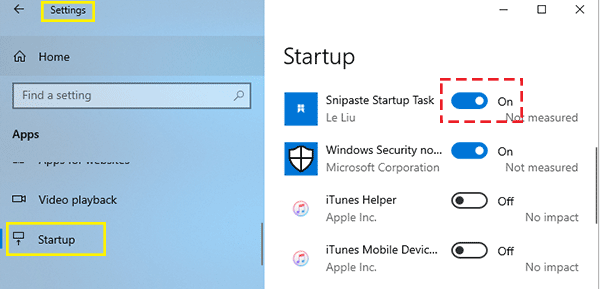
Windows 10 and 11 make it easy to manage startup apps. Here’s how:
Open the Startup Apps Menu
Press Ctrl + Shift + Esc to open Task Manager. Then, click the Startup tab. (On older Windows versions, you may need to first click “More details” to see this tab.)
Identify Apps to Disable
You’ll see a list of apps with their “Startup impact” (Low, Medium, or High). Focus on apps with “High” or “Medium” impact that you don’t need immediately—like social media tools, cloud storage syncers, or gaming launchers.
Disable the App
Right-click the app you want to stop, then select Disable. (Note: Avoid disabling essential apps like your antivirus or system tools.)
Mac users can manage startup apps through System Settings:
Open System Settings
Click the Apple menu () in the top-left corner, then select System Settings (or “System Preferences” on older macOS versions).
Access Startup Items
In System Settings, click General > Login Items. Here, you’ll see two lists: “Open at Login” (apps that launch when you log in) and “Allow in Background” (apps that run even if closed).
Remove Apps from Startup
For “Open at Login” apps: Click the app, then click the minus (-) button below the list to remove it.
For background apps: Toggle off the switch next to any app you don’t need running in the background.
Android devices also let you control which apps launch at startup, though steps may vary slightly by brand (e.g., Samsung, Google Pixel):
Open Settings
Tap the Settings app (usually a gear icon) on your home screen or app drawer.
Go to Apps Settings
Tap Apps or Applications, then select See all apps.
Manage Startup Apps
Tap the three-dot menu (⋮) in the top-right corner and select Startup apps. You’ll see a list of apps with switches indicating if they launch at startup.
Toggle off the switch next to any app you want to disable.
iOS is more restrictive with startup apps, but you can limit background activity that mimics startup behavior:
Open Settings
Tap the Settings app on your iPhone or iPad.
Check Background App Refresh
Tap General > Background App Refresh. This feature lets apps update data in the background, even if you’re not using them.
Toggle off “Background App Refresh” entirely, or disable it for specific apps you don’t need to update automatically.
Manage Notifications
Some apps “wake up” due to notifications. Go to Settings > Notifications, then turn off notifications for apps that don’t need to alert you immediately.
Don’t disable everything: Keep essential apps like antivirus software, password managers, or sync tools that you use daily.
Check periodically: New apps may set themselves to launch at startup after updates. Review your startup list every few months.
Test performance: If you’re unsure about an app, disable it temporarily and see if your device runs smoother. If not, you can re-enable it.
Disabling unnecessary startup apps is one of the easiest ways to speed up your device—no technical expertise required. By following these steps, you’ll notice faster boot times and a more responsive system in minutes. Remember: The goal isn’t to remove apps entirely, just to stop them from launching when you don’t need them.
Try it today, and enjoy a snappier device!

