

Only mid-to-high-end Lenovo models (e.g., ThinkPad, Yoga, Legion series) may have a keyboard backlight function. Confirm via the user manual or Lenovo’s official website (enter your laptop model for verification).
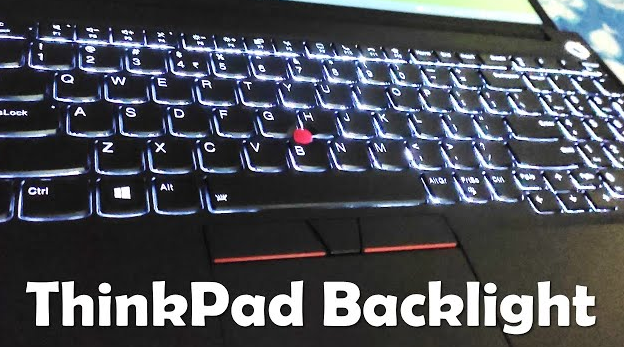
Different series use different key combinations:
ThinkPad: Press Fn + Space bar (cycle through "off → low brightness → high brightness").
Yoga: Try Fn + F4 or Fn + F5.
Legion: Use Fn + F9.
On Windows:
Open Start menu → Settings (gear icon).
Go to System → Display.
Find the Keyboard backlight option (name may vary) to turn it on. You can also adjust brightness or set auto-off time here.
Some laptops have an FnLk key (integrated with a function key).
Press Fn + FnLk to toggle the lock state. If locked, press the function key directly (no need for Fn).
If the above steps fail, the issue may be with the driver:
Visit Lenovo’s official website.
Enter your laptop model to download the latest keyboard driver.
Install and restart the laptop.
Confirm your laptop has a backlight function.
Use shortcut keys first; use system settings for adjustments.
Fix issues by checking Fn lock or updating drivers.

